
Introduction
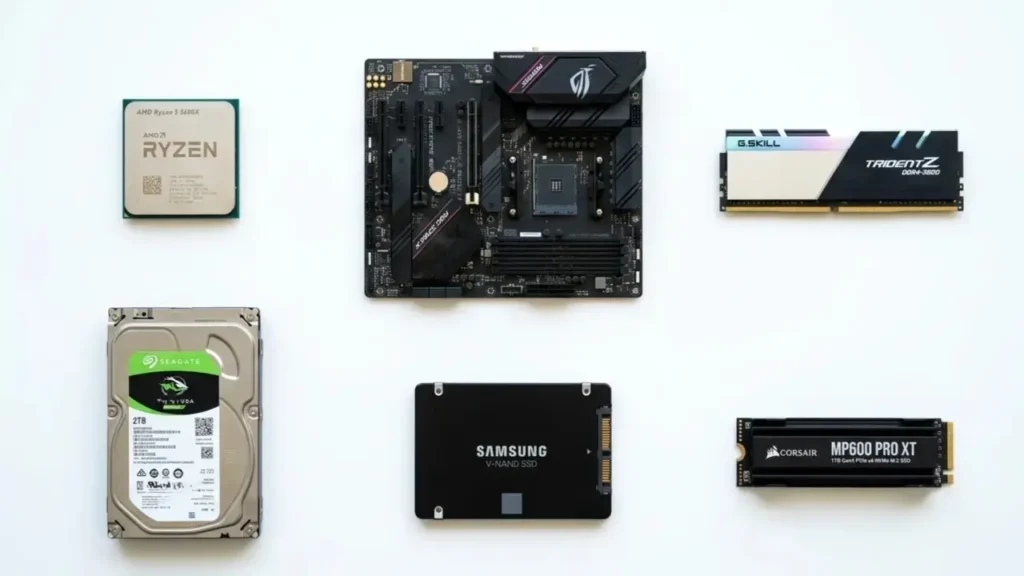
Computers have become an indispensable part of modern life. Whether you’re gaming, editing videos, attending online classes or simply browsing the internet, every task relies on a collection of hardware working in harmony. When you start exploring how these parts function, having PC components explained clearly can make all the difference.
Understanding PC components not only helps you make smarter buying decisions but also gives you the confidence to upgrade, troubleshoot or build a computer from scratch.
What Are PC Components And Why They Need To Be Explained
PC components are the physical parts that make up a computer. With PC components explained properly, you will find that these physical parts are far less intimidating than they look at first glance.Each piece performs a specific role and together they create a fully functional machine capable of handling everything from basic office work to intensive gaming and professional workloads.
Understanding The Building Blocks Of A Computer
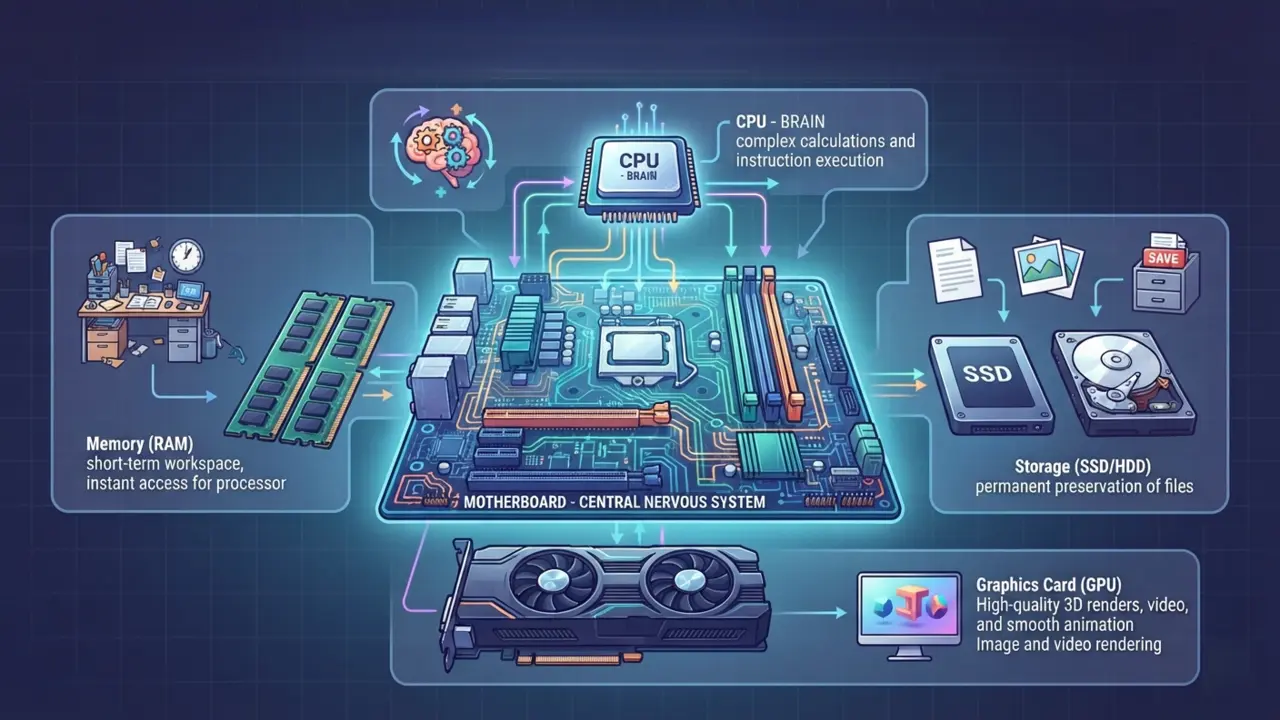
A computer is much like a highly organized ecosystem, where every component plays a specialized role to ensure seamless operation.
- Processor (CPU): Known as the “brain” of the computer, it performs the complex calculations and executes instructions required to run your software and operating system.
- Motherboard: One of the Core PC components explained, the motherboard provides the essential electrical pathways and connection points that allow all components—such as the processor, memory, and storage—to communicate and work together. It facilitates data flow and power distribution across the entire system.
- Memory (RAM): This serves as the computer’s short-term workspace, holding the data currently in use so the processor can access it instantly.
- Storage (SSD/HDD): This preserves your files, documents, and programs permanently, even when the power is turned off.
- Graphics Card (GPU): This component takes care of rendering images, videos, and animations, ensuring that what you see on your screen is smooth and high-quality.
How Different Components Work Together Behind The Scenes
When you open an application, data is retrieved from storage, loaded into RAM, processed by the CPU and displayed through the GPU. This intricate choreography occurs within milliseconds, creating a seamless user experience.
The Difference Between Hardware And Software: PC Components Explained
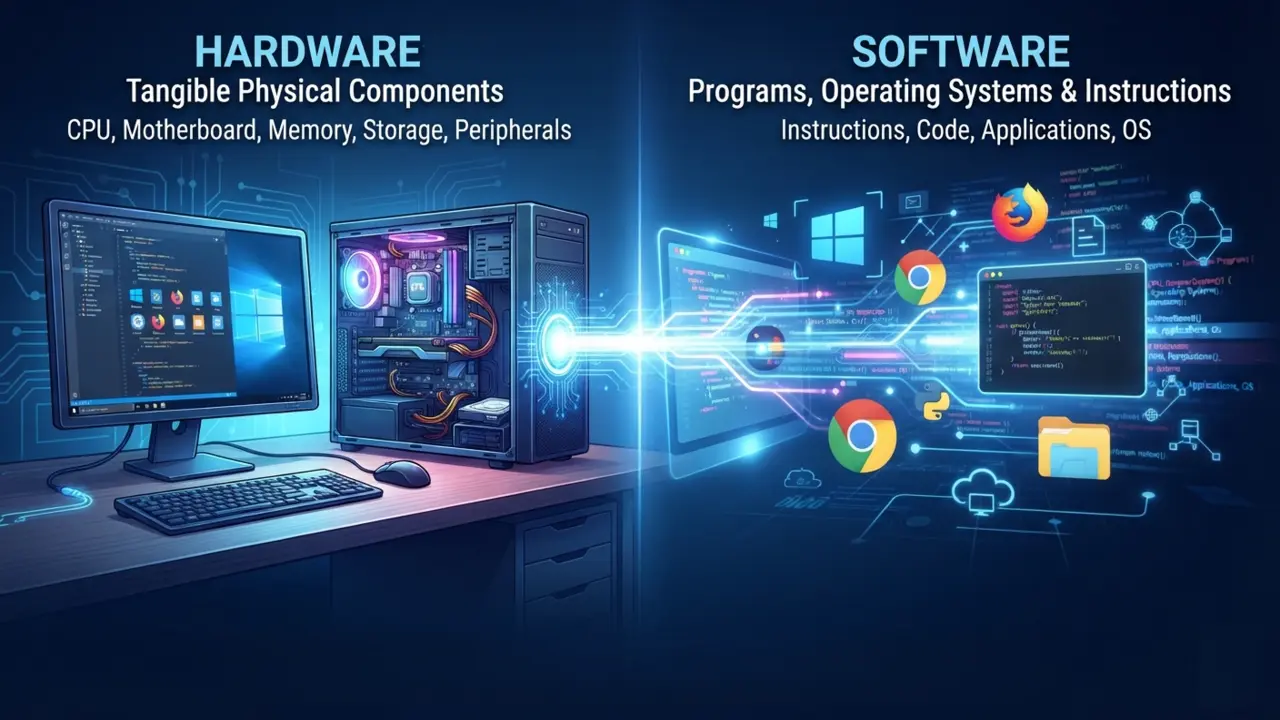
Hardware refers to the tangible parts of a computer. Software consists of programs and operating systems that instruct the hardware on what to do. One cannot function effectively without the other.
The Central Processing Unit (CPU): The Brain Of Your PC
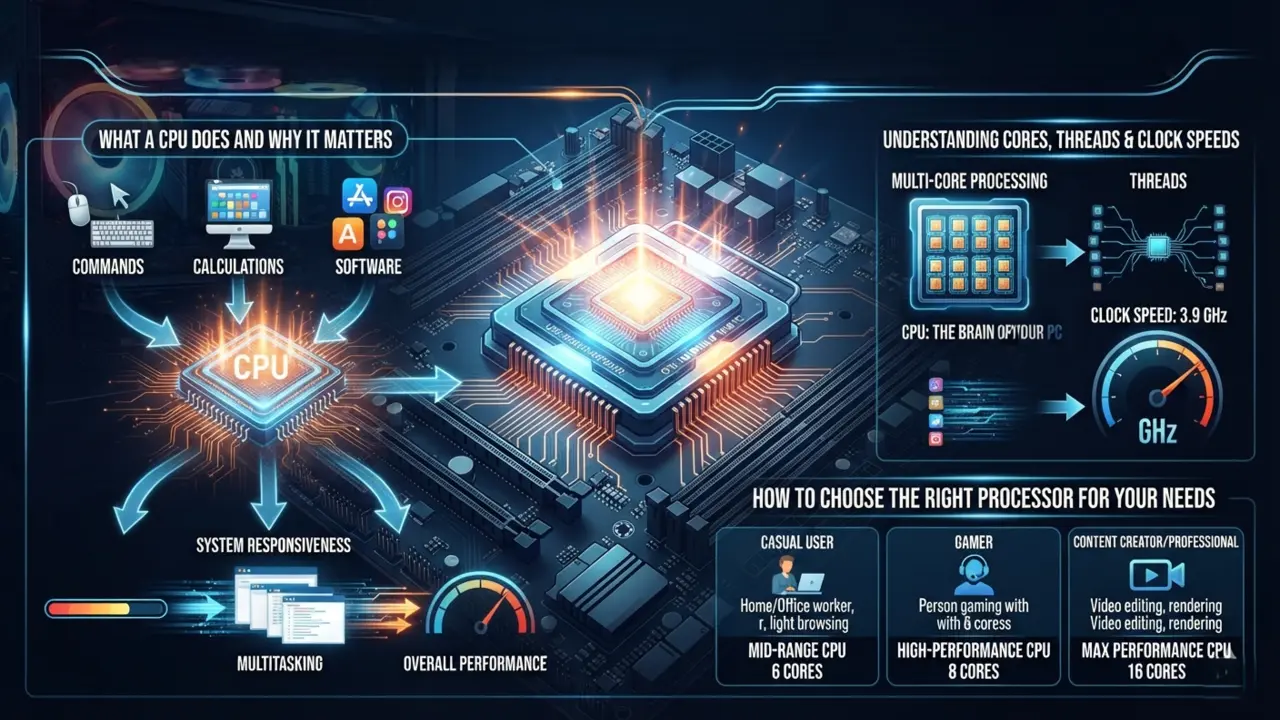
The CPU is often regarded as the most important component because it executes instructions and performs calculations required by software. As you dive deeper into having PC components explained, the Central Processing Unit (CPU) always takes center stage as the undeniable brain of your computer.
What A CPU Does And Why It Matters
Every click, command, and calculation passes through the processor. A powerful CPU improves responsiveness, multitasking capabilities, and overall system performance.
Understanding Cores, Threads And Clock Speeds
Modern processors contain multiple cores, allowing them to perform several tasks simultaneously. Threads represent virtual processing pathways that improve efficiency. Clock speed, measured in gigahertz (GHz), indicates how quickly the processor can execute instructions.
How to Choose The Right Processor For Your Needs
Casual users generally benefit from mid-range processors, while gamers, content creators and professionals often require CPUs with more cores and higher performance capabilities.
The Motherboard: The Backbone That Connects Everything
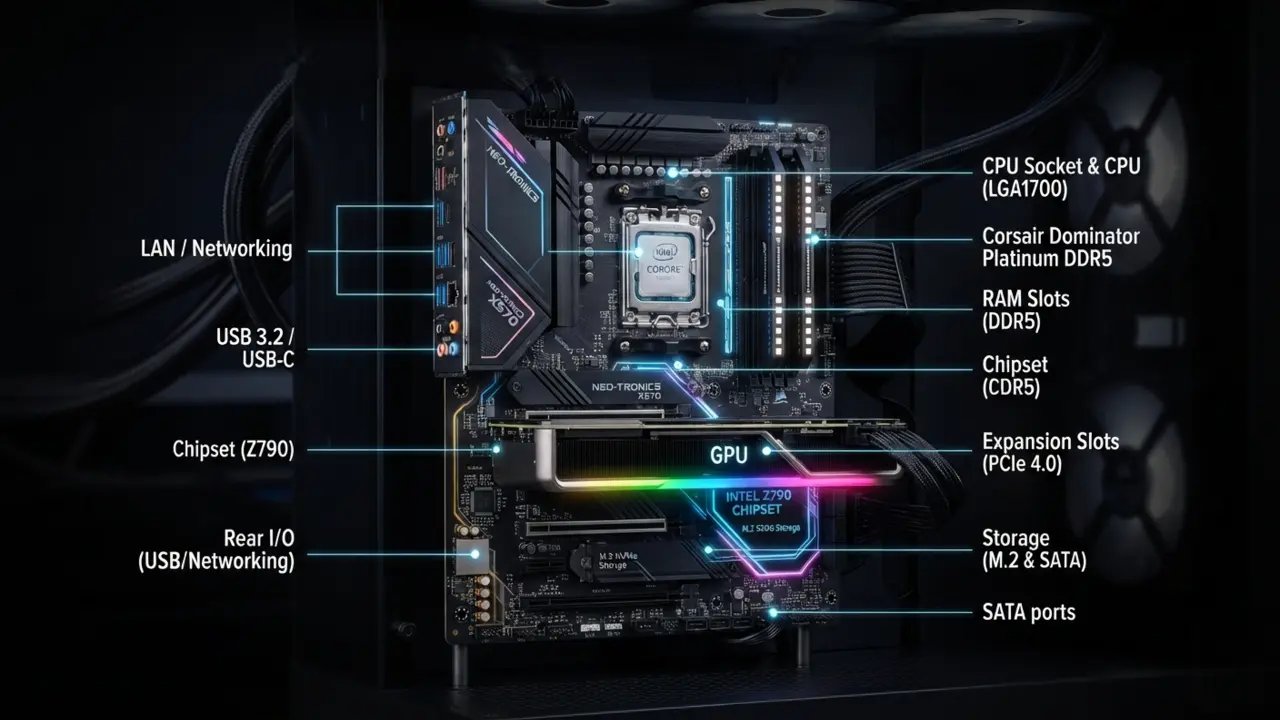
The motherboard acts as the central nexus of a computer, connecting all components and facilitating communication between them. When you look at PC components explained, the motherboard quickly stands out as the physical platform that ties every other piece of hardware together.
What A Motherboard Actually Does
Every major component plugs into the motherboard. It distributes power, manages data transfer, and ensures that hardware components can communicate effectively.
Key Motherboard Features You Should Know
Important features include RAM slots, expansion slots, storage connectors, USB ports and networking capabilities. These features determine the system’s upgrade potential.
Chipsets, Sockets And Compatibility Explained
The CPU socket must match the processor. Meanwhile, the chipset dictates supported features, overclocking capabilities, and connectivity options. Compatibility is crucial when selecting components.
RAM (Memory): Your PC’s Short-Term Memory
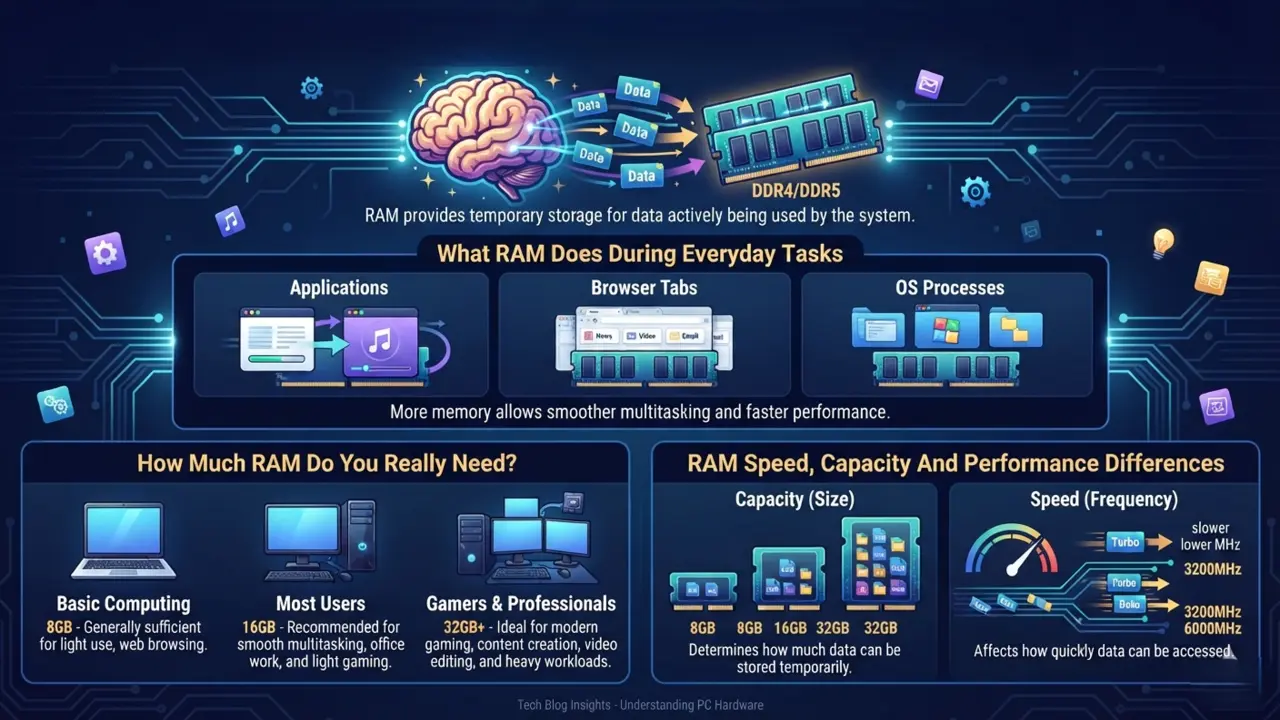
RAM provides temporary storage for data actively being used by the system. In any guide where PC components explained takes priority, RAM is highlighted as the high-speed workspace that keeps your current workflow fluid.
What RAM Does During Everyday Tasks
Applications, browser tabs and operating system processes are stored in RAM while running. More memory allows smoother multitasking and faster performance.
How Much RAM Do You Really Need?
For basic computing, 8GB is generally sufficient. Most users benefit from 16GB, while gamers, designers and professionals may prefer 32GB or more.
RAM Speed, Capacity And Performance Differences
Capacity determines how much data can be stored temporarily, while speed affects how quickly data can be accessed. Both influence overall system responsiveness.
Storage Devices: Where Your Data Lives
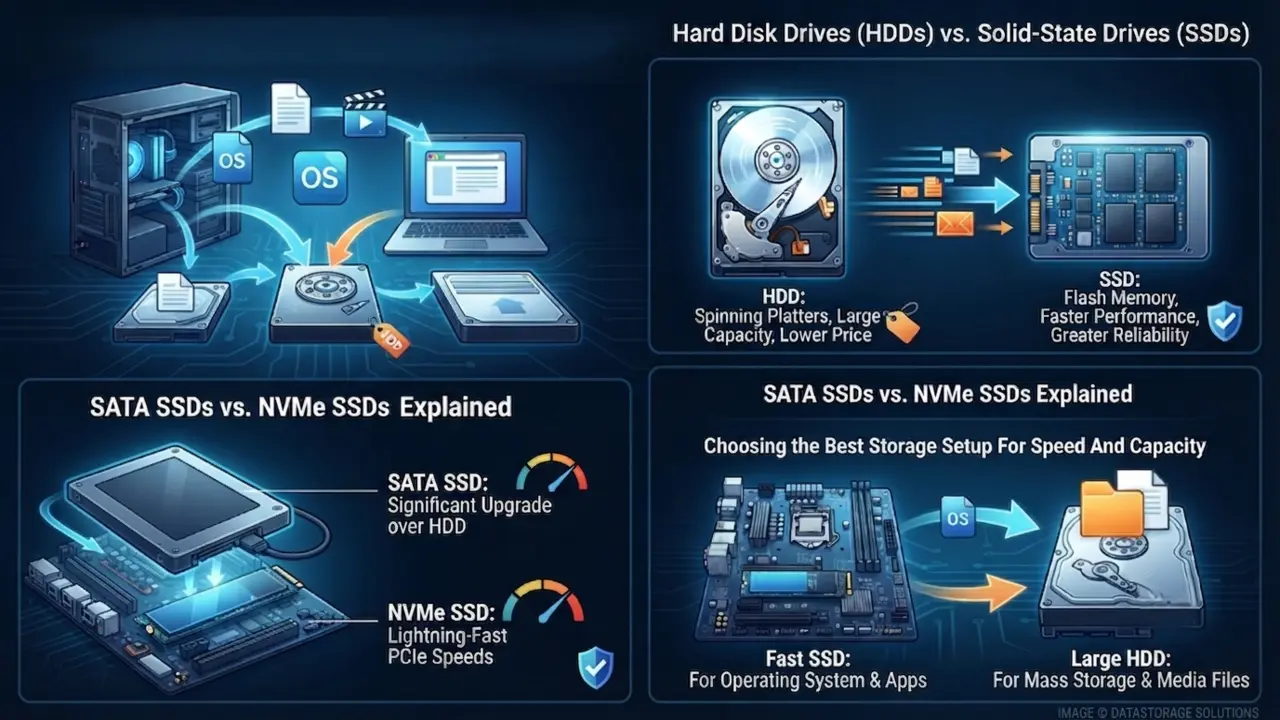
Storage devices preserve operating systems, applications, documents and media files even when the computer is powered off. Having PC components explained helps demystify the difference between keeping data temporarily versus preserving it permanently on your hard drives.
Hard Disk Drives (HDDs) vs Solid-State Drives (SSDs)
HDDs use spinning magnetic platters and offer large capacities at lower prices. SSDs use flash memory, providing dramatically faster performance and greater reliability.
SATA SSDs vs NVMe SSDs Explained
SATA SSDs represent a significant upgrade over HDDs. NVMe SSDs take performance even further by utilizing high-speed PCIe connections, resulting in lightning-fast load times.
Choosing the Best Storage Setup For Speed And Capacity
Many users combine a fast SSD for the operating system with a larger HDD for mass storage. This hybrid approach balances performance and affordability.
Graphics Processing Unit (GPU): Powering Visual Performance
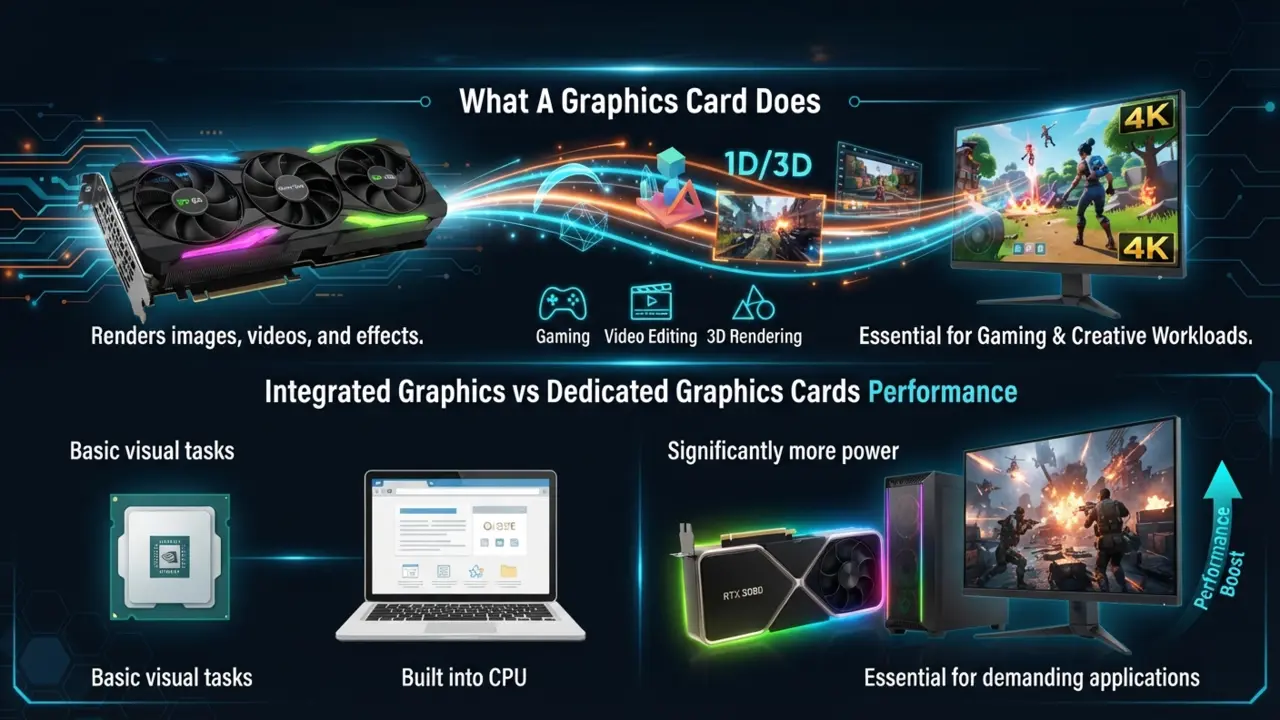
The GPU specializes in rendering images, videos and graphical effects. If you look closely at PC components explained for gaming and creative work, the Graphics Processing Unit is universally recognized as the powerhouse behind visual fidelity.
What A Graphics Card Does
Graphics cards process visual data and generate the images displayed on your monitor. They are particularly important for gaming and creative workloads.
Integrated Graphics vs Dedicated Graphics Cards
Integrated graphics are built into the processor and handle basic visual tasks. Dedicated GPUs offer significantly more power and are essential for demanding applications.
Power Supply Unit (PSU): The Unsung Hero of Every Build
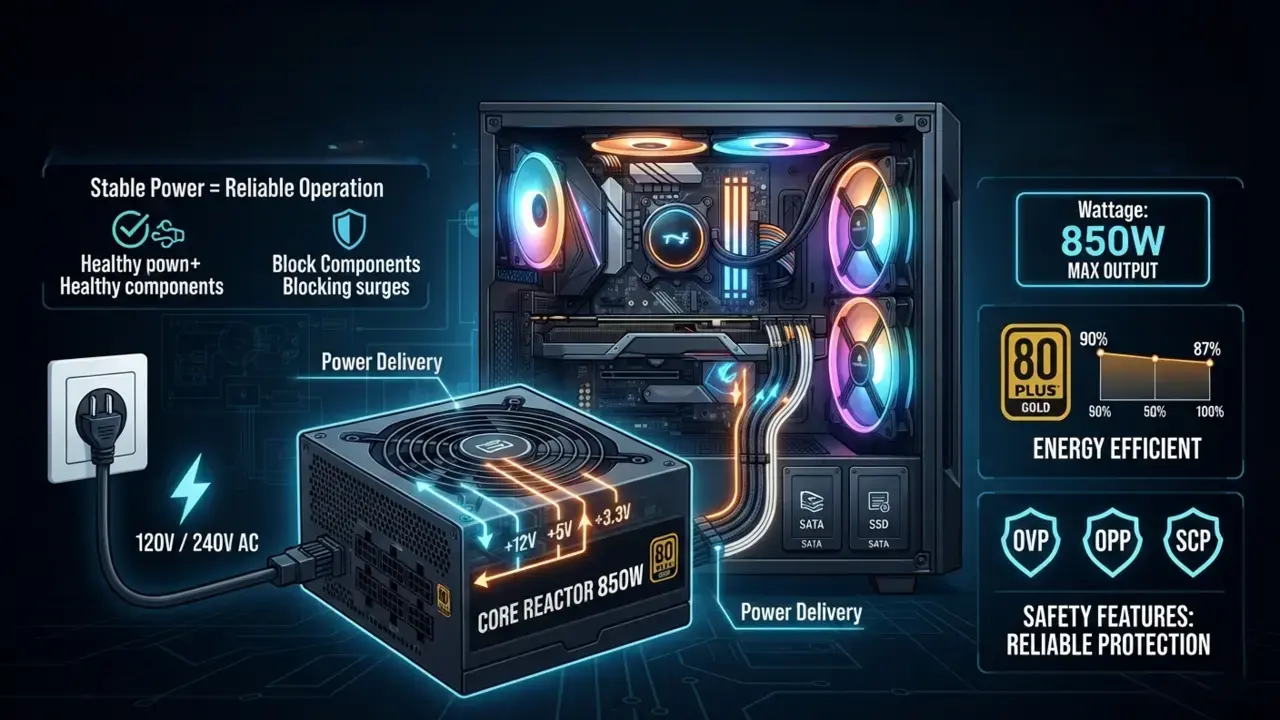
The PSU converts electricity from your wall outlet into usable power for your computer. Any thorough resource with PC components explained will emphasize the PSU as the ultimate safeguard for your entire hardware ecosystem.
Why Power Delivery Is So Important
Stable power ensures reliable operation and protects sensitive components from electrical irregularities.
Understanding Wattage, Efficiency Ratings And Safety Features
Wattage determines how much power the PSU can deliver. Efficiency certifications, such as 80 Plus ratings, indicate energy efficiency and build quality.
Common PSU Mistakes To Avoid
Many builders underestimate power requirements or choose low-quality units. Investing in a reputable PSU enhances system stability and longevity.
Cooling Systems: Keeping Your PC Running Smoothly
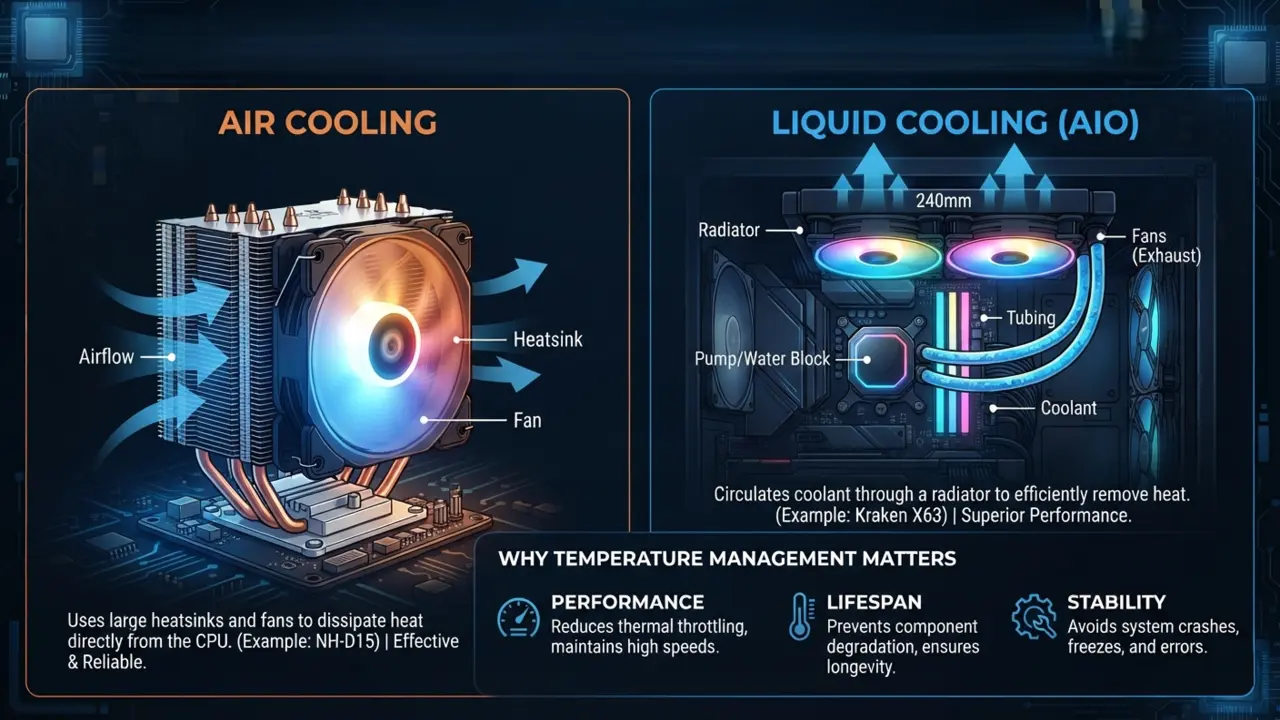
Heat is the nemesis of performance. Effective cooling helps maintain optimal operating temperatures. As you read through PC components explained, cooling systems are frequently highlighted because managing heat is vital to sustaining hardware longevity.
Why Temperature Management Matters
Excessive heat can reduce performance, shorten component lifespan, and cause system instability.
Air Cooling vs Liquid Cooling
Air coolers use heatsinks and fans to dissipate heat. Liquid cooling systems circulate coolant through radiators, often providing superior thermal performance.
Signs Your PC May Be Running Too Hot
Frequent crashes, loud fan noise, thermal throttling and unexpectedly high temperatures are common warning signs.
PC Cases: More Than Just A Box
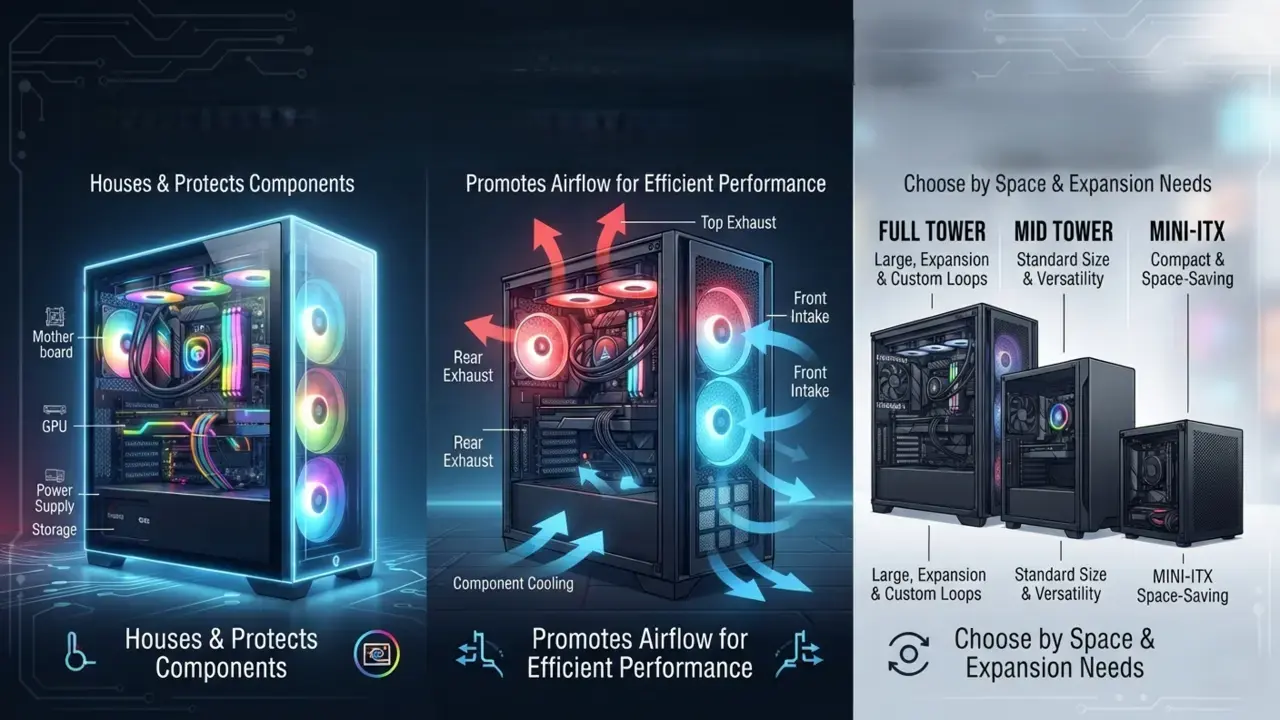
A PC case houses and protects all internal components. When getting PC components explained from a structural standpoint, the computer case is much more than a simple aesthetic box—it dictates airflow and build ease.
How Cases Affect Airflow And Performance
Well-designed cases promote airflow, helping components stay cool and perform efficiently.
Different Case Sizes And Form Factors
Common sizes include Full Tower, Mid Tower, and Mini-ITX. The right choice depends on available space and expansion requirements.
Features That Make Building Easier
Tool-less designs, cable management channels, dust filters, and spacious interiors simplify the building process.
Essential Expansion And Connectivity Components
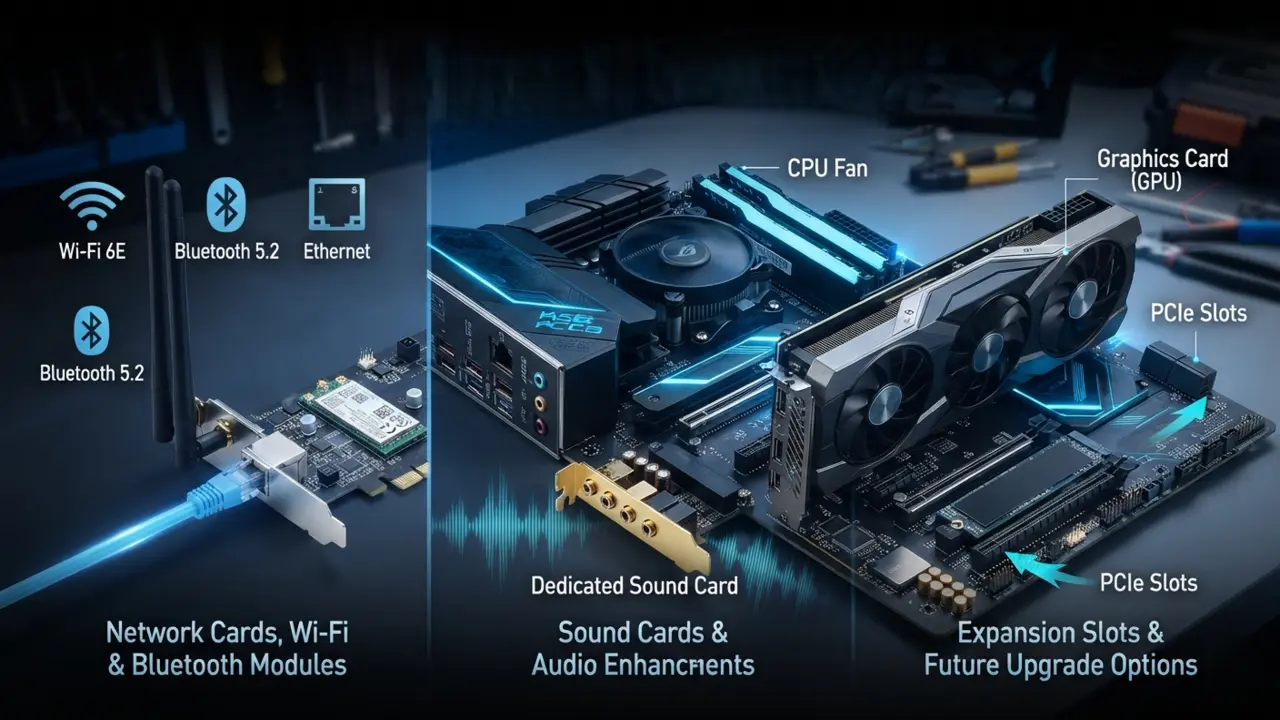
Additional components can enhance functionality and future-proof your system. To round out having PC components explained, looking at expansion cards and adapters shows you how easily a system can adapt to new connectivity standards.
Network Cards, Wi-Fi Adapters And Bluetooth Modules
These devices provide wired and wireless connectivity options, ensuring reliable communication with networks and peripherals.
Sound Cards And Audio Enhancements
While integrated audio is usually sufficient, dedicated sound cards can provide superior audio fidelity for enthusiasts.
Expansion Slots And Future Upgrade Options
PCIe slots allow users to add graphics cards, storage controllers, networking hardware and other specialized devices.
Understanding Ports, Connectors And Cables
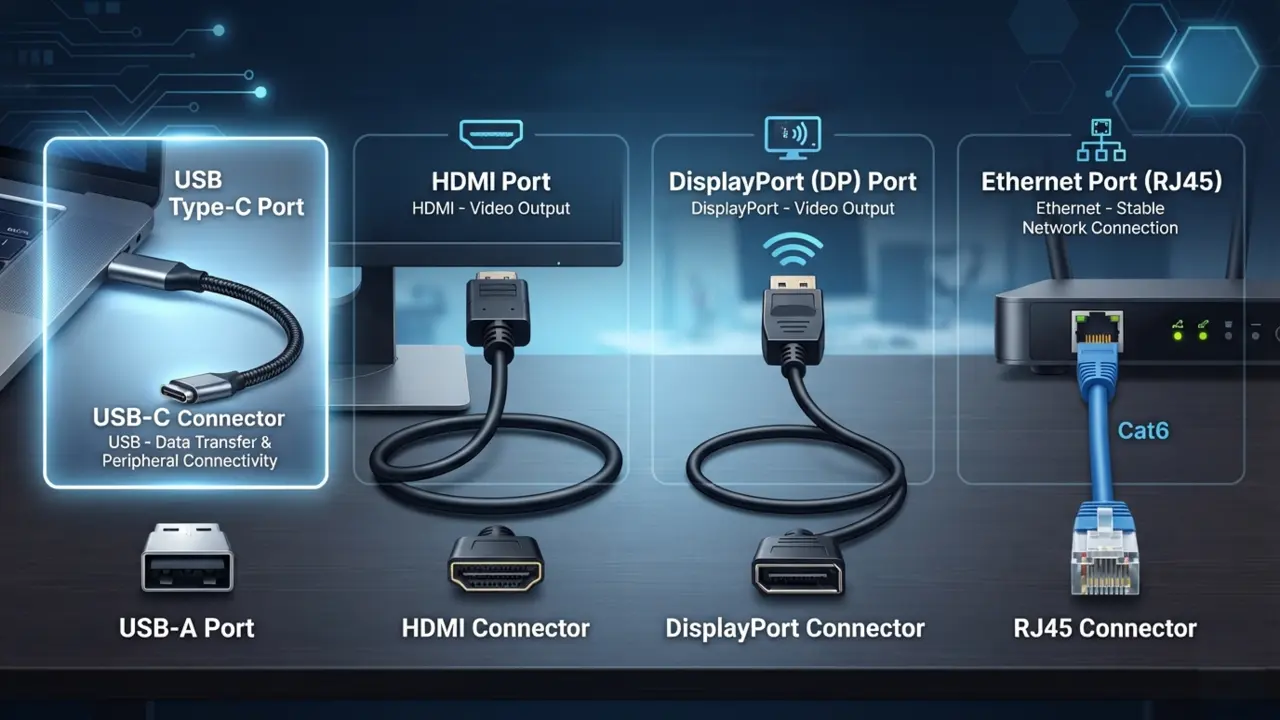
Connections play a critical role in linking components and peripherals. A vital part of having PC components explained involves knowing how internal and external cables link your ecosystem together into a cohesive unit.
USB, HDMI, DisplayPort And Ethernet Explained
USB supports data transfer and peripheral connectivity. HDMI and DisplayPort handle video output, while Ethernet provides stable network connections.
Internal Connectors Every Builder Should Recognize
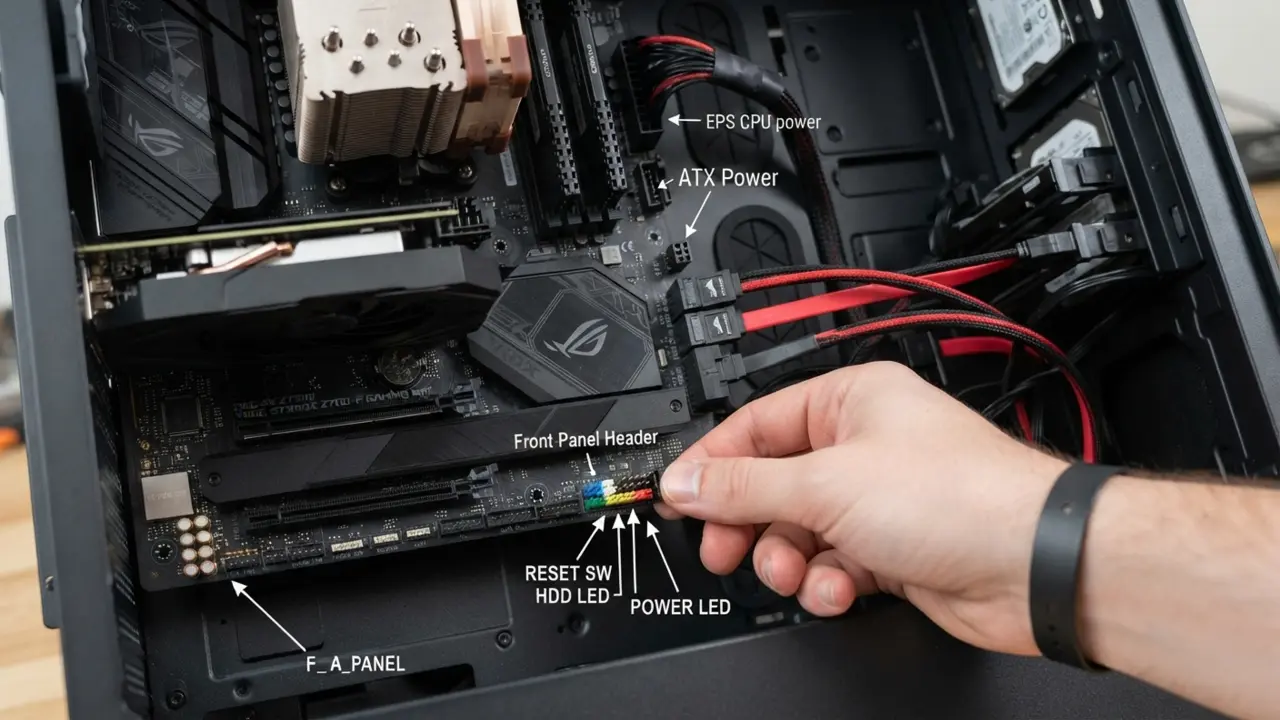
Power connectors, SATA cables, front-panel headers and fan connectors are essential elements during assembly.
Cable Management Tips For Better Airflow
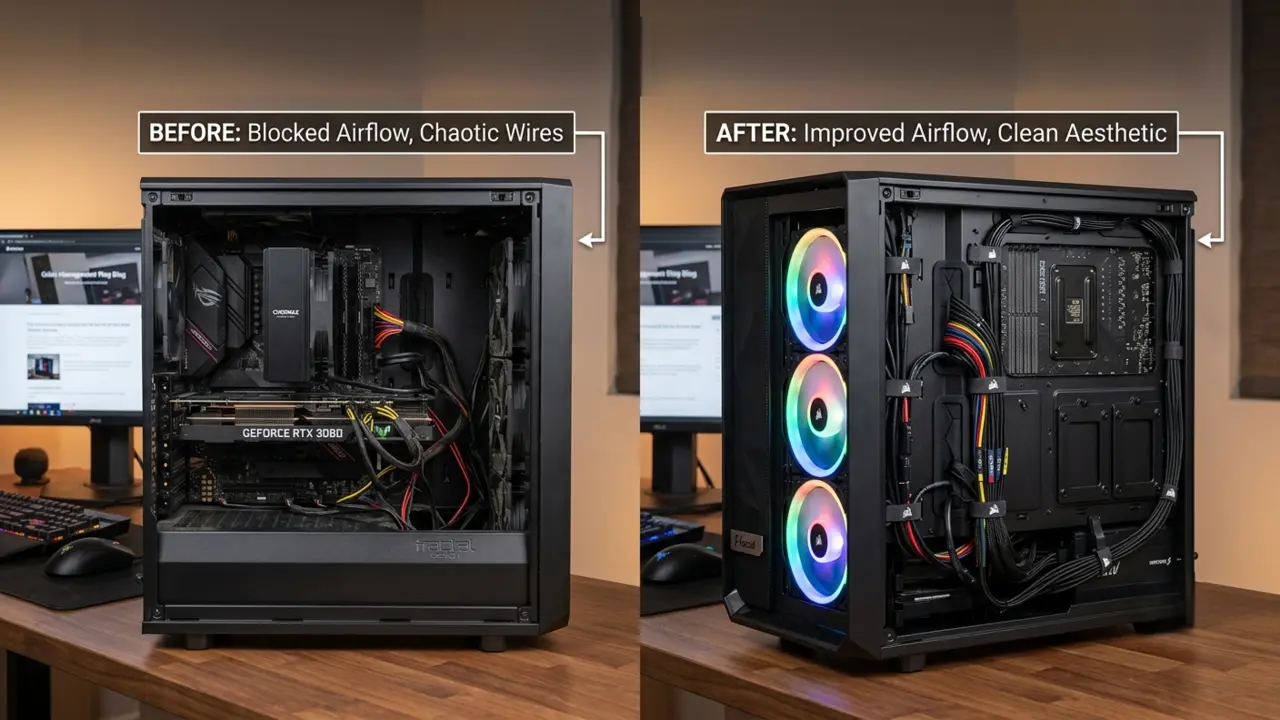
Organized cabling improves airflow, simplifies maintenance and creates a cleaner aesthetic appearance.
How PC Components Work Together
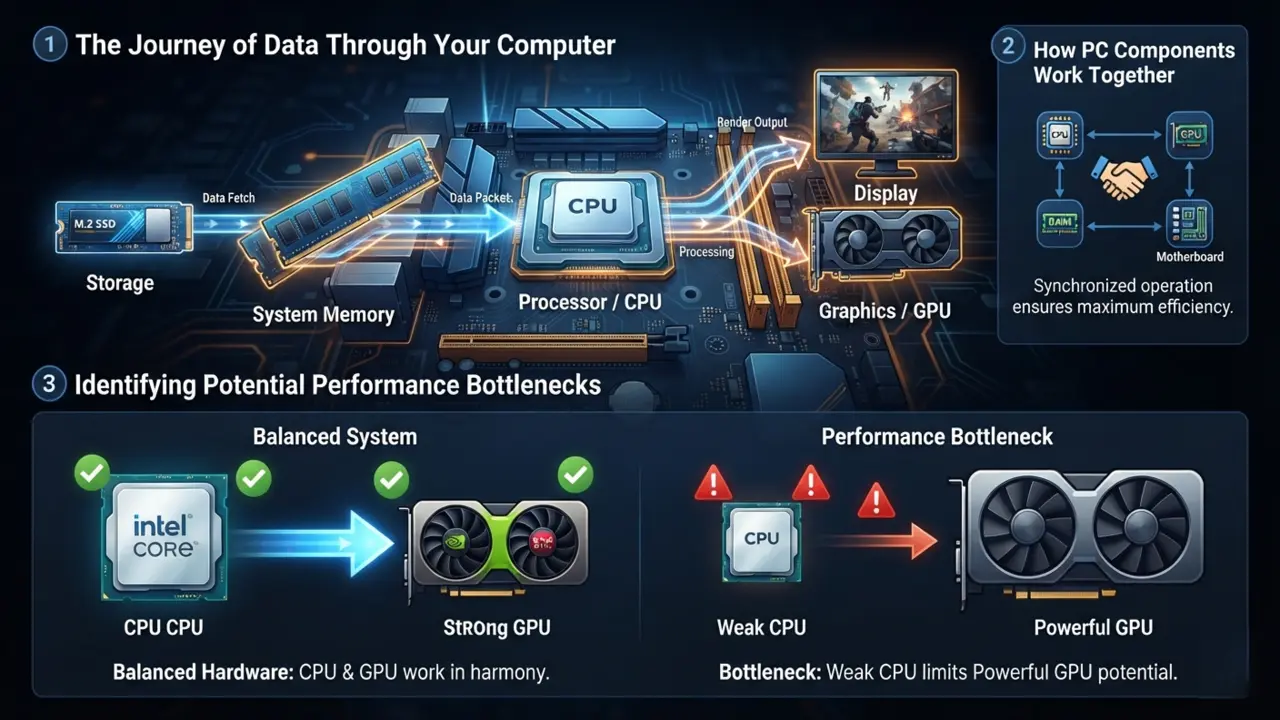
Individual components are only part of the story. Their interaction determines overall performance.
The Journey of Data Through Your Computer
Data moves from storage to memory, gets processed by the CPU, and is ultimately displayed by the GPU. This continuous exchange powers every application and task.
Identifying Potential Performance Bottlenecks
A powerful GPU paired with a weak CPU or insufficient RAM can limit performance. Balanced hardware delivers the best results.
Why Component Compatibility Matters
Incompatible components can prevent a system from functioning properly. Careful planning ensures smooth operation and future upgrade flexibility.
Common PC Component Upgrades That Deliver The Biggest Improvements
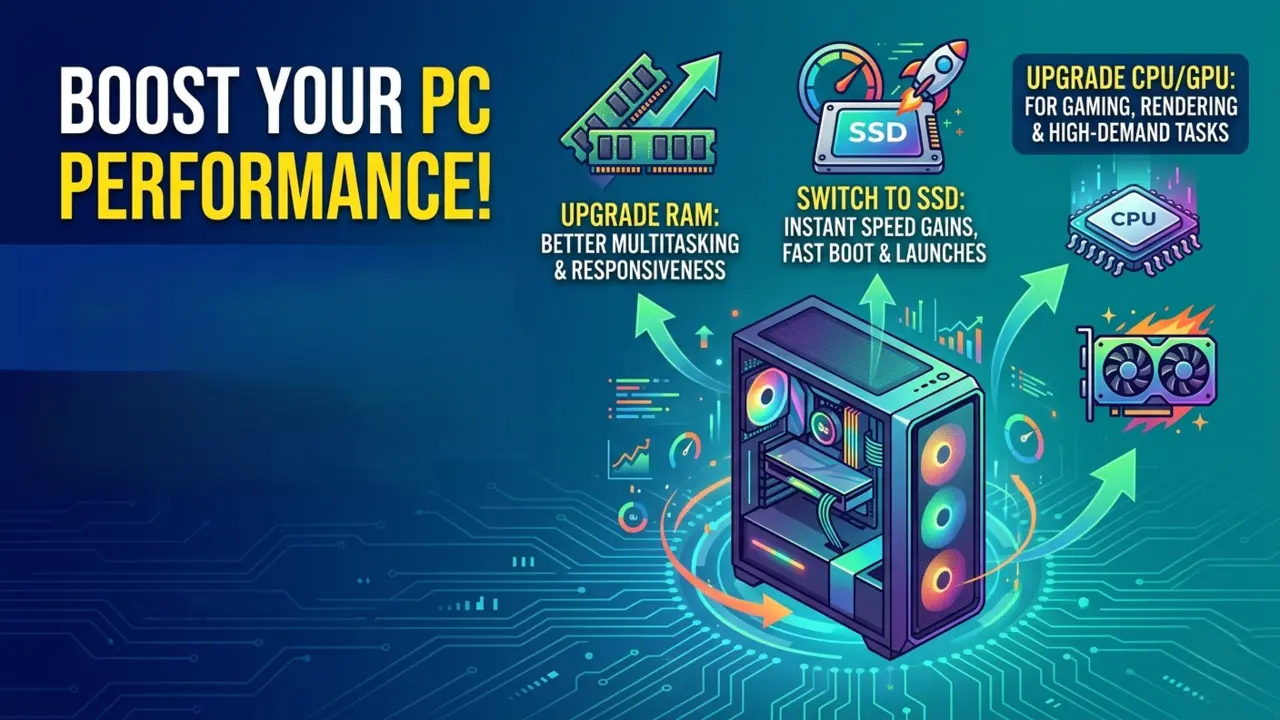
Strategic upgrades can dramatically enhance performance without replacing an entire system. Once you have PC components explained and understand how they interact, identifying which hardware piece needs an upgrade becomes a straightforward task.
Upgrading RAM For Better Multitasking
Additional memory improves responsiveness when running multiple applications simultaneously.
Switching To An SSD For Instant Speed Gains
Few upgrades are as transformative as moving from an HDD to an SSD. Boot times, application launches, and file transfers become noticeably faster.
When It’s Time To Upgrade Your CPU Or GPU
Performance limitations during gaming, rendering or productivity tasks often indicate the need for a processor or graphics card upgrade.
Common Mistakes Beginners Make When Choosing Components
Many first-time builders make avoidable errors that affect performance and value. Many costly errors happen when buyers skip getting PC components explained beforehand, leading to mismatched parts and bottlenecked performance.
Overspending On The Wrong Parts
Allocating too much budget to one component can create an unbalanced system. Prioritizing harmony is more effective than pursuing raw specifications.
Ignoring Power And Cooling Requirements
Power and thermal management are often overlooked, yet they play a pivotal role in stability and longevity.
Buying Incompatible Hardware
Failing to verify compatibility between processors, motherboards, memory, and cases can lead to frustration and unnecessary expenses.
Final Thoughts: Building Confidence Through Component Knowledge
Understanding PC components transforms technology from a mysterious black box into a comprehensible and manageable tool.
Key Takeaways For First-Time PC Buyers And Builders
Every component serves a distinct purpose. Learning these roles helps you make informed purchasing decisions and avoid costly mistakes.
How Understanding Components Helps You Make Smarter Decisions
Knowledge enables you to evaluate specifications, compare products intelligently, and invest where performance gains matter most.
Preparing For Your Next PC Build Or Upgrade With Confidence
Whether you’re assembling your first computer or upgrading an existing system, having these PC components explained provides the foundation for a reliable, efficient, and future-ready machine. The more familiar you become with these essential parts, the easier it becomes to create a PC perfectly tailored to your needs.