
Introduction
Choosing the right PC can feel overwhelming in today’s market, but our comprehensive desktop pc buying guide is here to clear the confusion. One quick search can plunge you into a maze of technical jargon, endless benchmarks, and passionate debates. Should you build your own computer or buy a pre-built system? Is AMD better than Intel? How much RAM is enough? Do you really need a graphics card that costs more than your entire last computer?
The good news is that choosing the right machine doesn’t have to be complicated. The secret isn’t finding the most expensive hardware or the component with the highest benchmark score; it’s finding the system that aligns with how you’ll actually use it.
Think of your workload as your compass. Whether you’re checking emails, editing cinematic video projects, competing in esports tournaments, or managing virtual machines, your ideal PC is defined by your specific needs. This desktop PC buying guide breaks down the decision-making process into simple, practical steps to help you choose the right computer for your needs.
Every great desktop PC buying guide starts by understanding how you’ll actually use your computer rather than chasing the latest specifications.
Defining Your Use Case (The Why)
Before comparing processors, graphics cards or storage capacities, answer one simple question:
What will this PC actually do?
Your answer influences every purchase decision that follows. In any thorough desktop pc buying guide, defining your workload is universally recognized as the single most important step.
The Basics: Home Office And Web Browsing
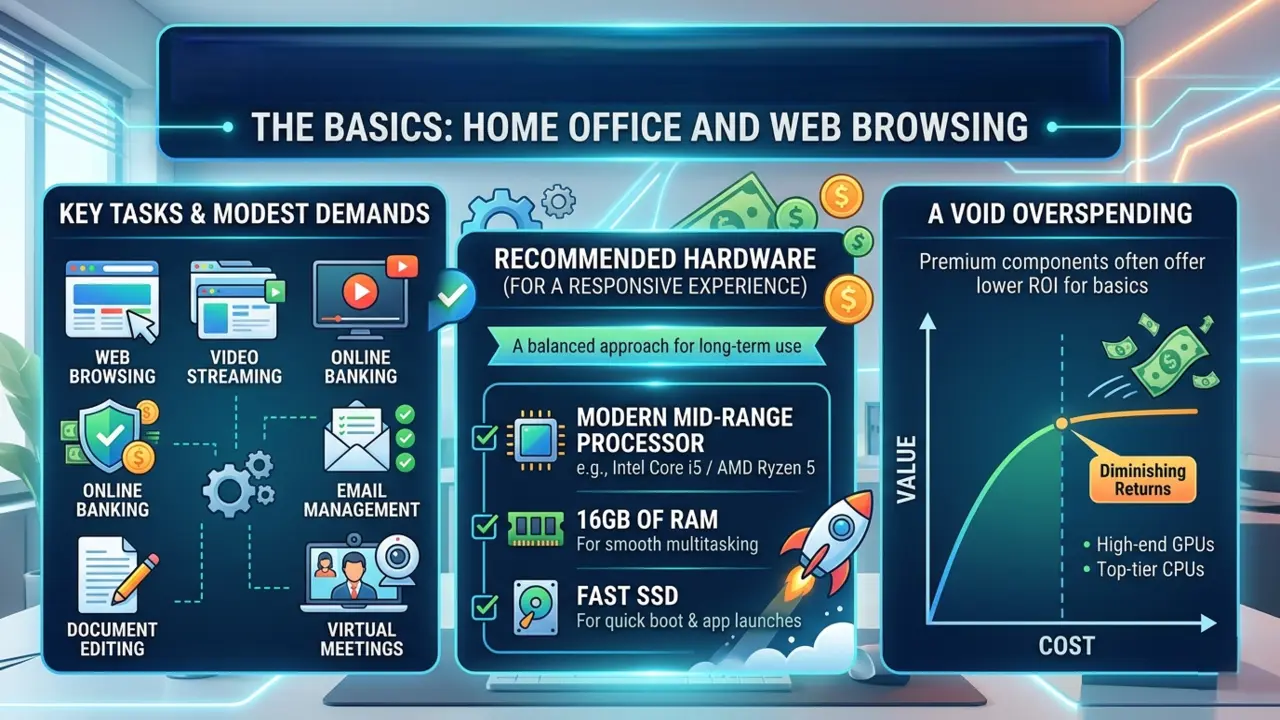
For general users, the demands are surprisingly modest. Tasks such as web browsing, video streaming, online banking, email management, document editing, and virtual meetings don’t require cutting-edge hardware. A modern mid-range processor, 16GB of RAM and a fast SSD will provide a responsive experience for years.
Spending heavily on premium components in this category often results in diminishing returns.
The Creator: Video Editing, 3D Rendering And Graphic Design
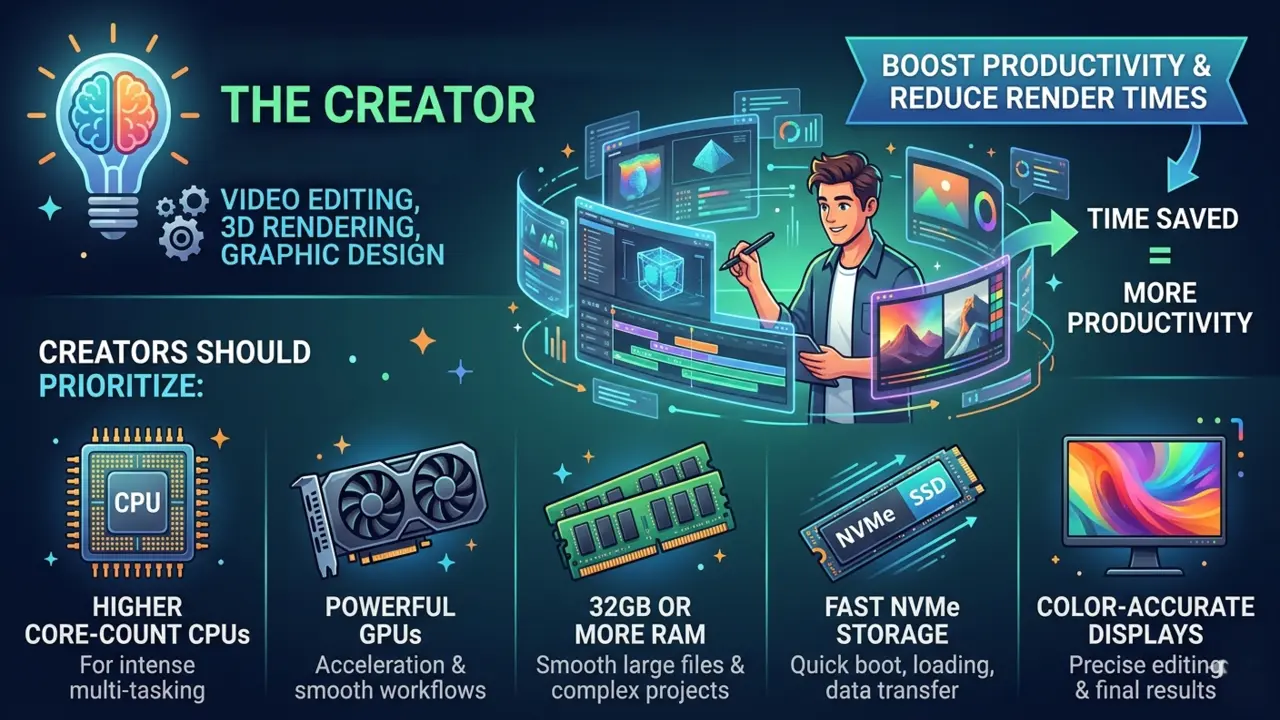
Creative workloads are a different beast altogether. Video editing software, animation suites, CAD applications and rendering engines thrive on multi-core processing power and generous memory allocations. GPU acceleration also plays a significant role in reducing render times and improving workflow responsiveness.
Creators should prioritize:
- Higher core-count CPUs
- Powerful GPUs
- 32GB or more RAM
- Fast NVMe storage
- Color-accurate displays
Time saved during rendering quickly translates into productivity gains.
The Gamer: Competitive Esports Vs. AAA Immersive Gaming
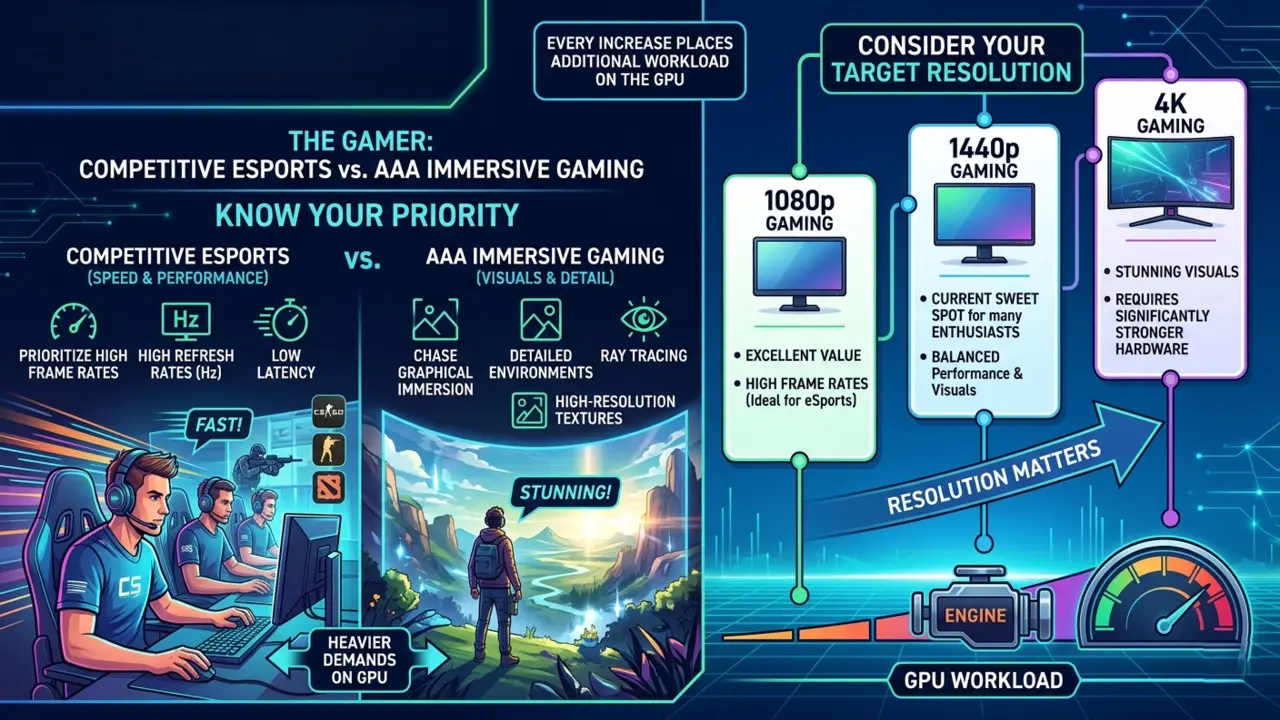
Not all gaming requirements are equal. Competitive players often prioritize frame rates above visual fidelity. Games like tactical shooters and MOBAs benefit from high refresh rates and low latency. AAA gamers, meanwhile, tend to chase graphical immersion. Detailed environments, ray tracing, and high-resolution textures place heavier demands on the graphics card.
Consider your target resolution:
- 1080p Gaming: Excellent value and high frame rates.
- 1440p Gaming: The current sweet spot for many enthusiasts.
- 4K Gaming: Stunning visuals but requires significantly stronger hardware.
Resolution matters because every increase places additional workload on the GPU.
Whether you are chasing ultra-high frame rates in esports or stunning 4K visuals, balancing these requirements is a core focus of any good desktop PC buying guide.
The Professional: Development, Data Science And Virtualization
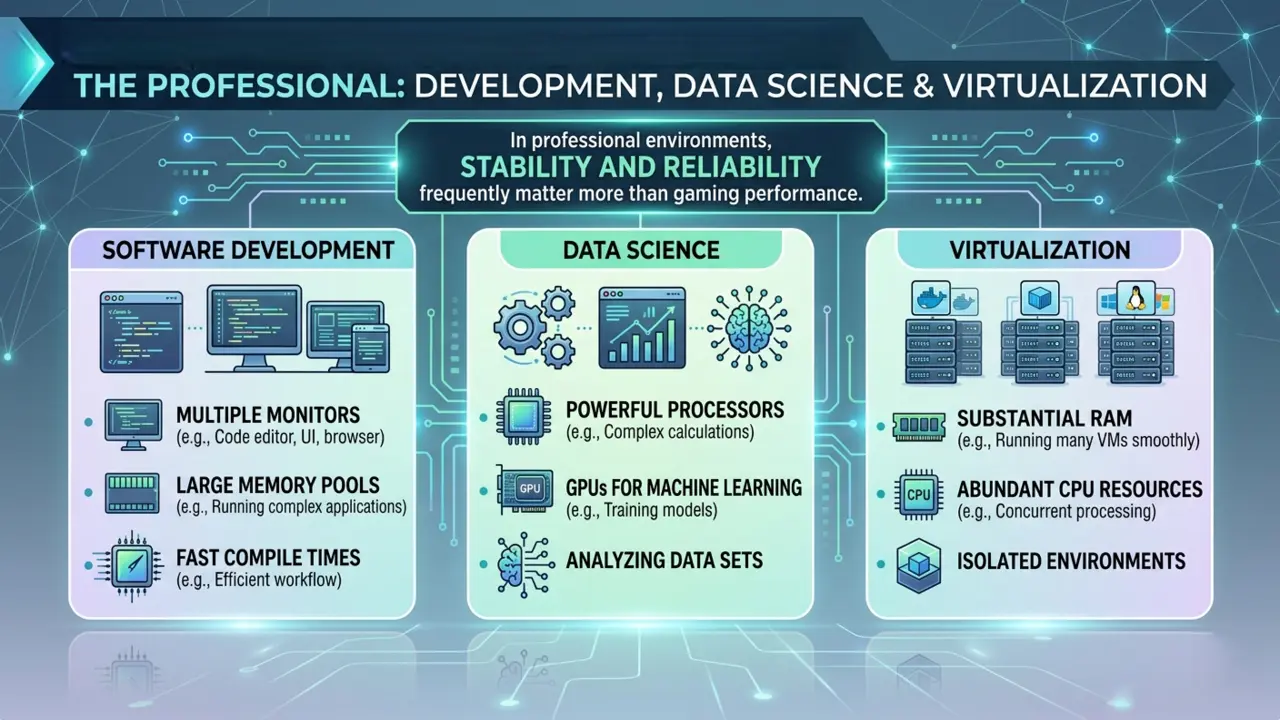
Professionals often occupy a unique category. Software developers may require multiple monitors, large memory pools, and fast compile times. Data scientists benefit from powerful processors and GPUs for machine learning workloads. Users running virtual machines need substantial RAM and abundant CPU resources.
In professional environments, stability and reliability frequently matter more than gaming performance.
Choosing Your Path: Custom Build Vs. Pre-built
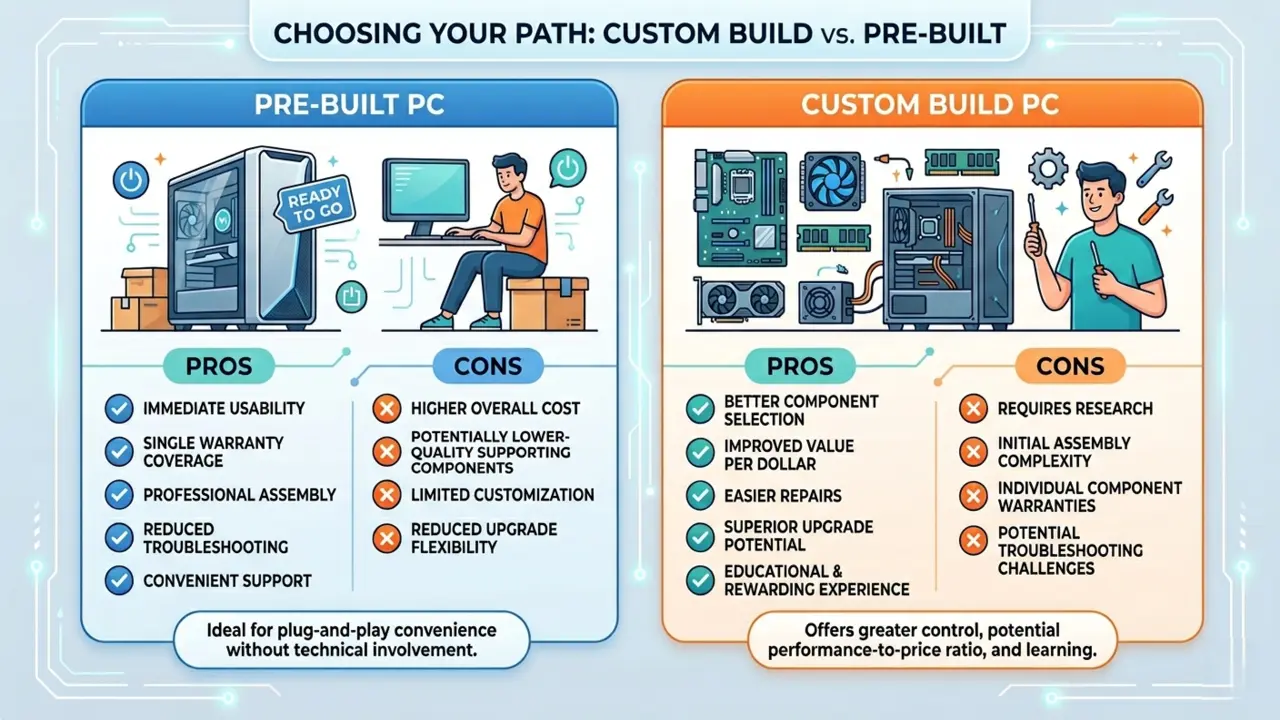
Once you’ve defined your use case, the next decision becomes clear: build or buy? A well-structured desktop pc buying guide must address this classic dilemma, as it dictates both your upfront costs and your long-term flexibility.
Pre-built PC Pros & Cons
Pre-built systems remain popular for good reason.
Advantages:
- Immediate usability
- Single warranty coverage
- Professional assembly
- Reduced troubleshooting
- Convenient support channels
Disadvantages:
- Higher overall cost
- Potentially lower-quality supporting components
- Limited customization
- Reduced upgrade flexibility
For users who simply want a functioning computer without technical involvement, pre-built systems offer undeniable convenience.
Custom Build Pros & Cons
Building your own PC provides greater control over every component.
Advantages:
- Better component selection
- Improved value per dollar
- Easier repairs
- Superior upgrade potential
- Educational and rewarding experience
Disadvantages:
- Requires research
- Initial assembly complexity
- Individual component warranties
- Potential troubleshooting challenges
Custom builds often deliver the best performance-to-price ratio when planned carefully.
The Middle Ground: Boutique Custom Builders
There’s also a compelling hybrid option. Boutique builders assemble systems using carefully selected components while still offering professional support and warranties. This approach provides much of the quality control associated with custom builds without requiring users to assemble the hardware themselves.
For many buyers, this represents the ideal compromise.
A complete desktop PC buying guide should consider all three approaches so you can choose the option that best matches your budget, experience and upgrade goals.
The Core Components: A Beginner’s Breakdown
Understanding the major components is one of the most valuable parts of any desktop PC buying guide, because every hardware decision affects performance, longevity and overall value.
CPU (The Brain)
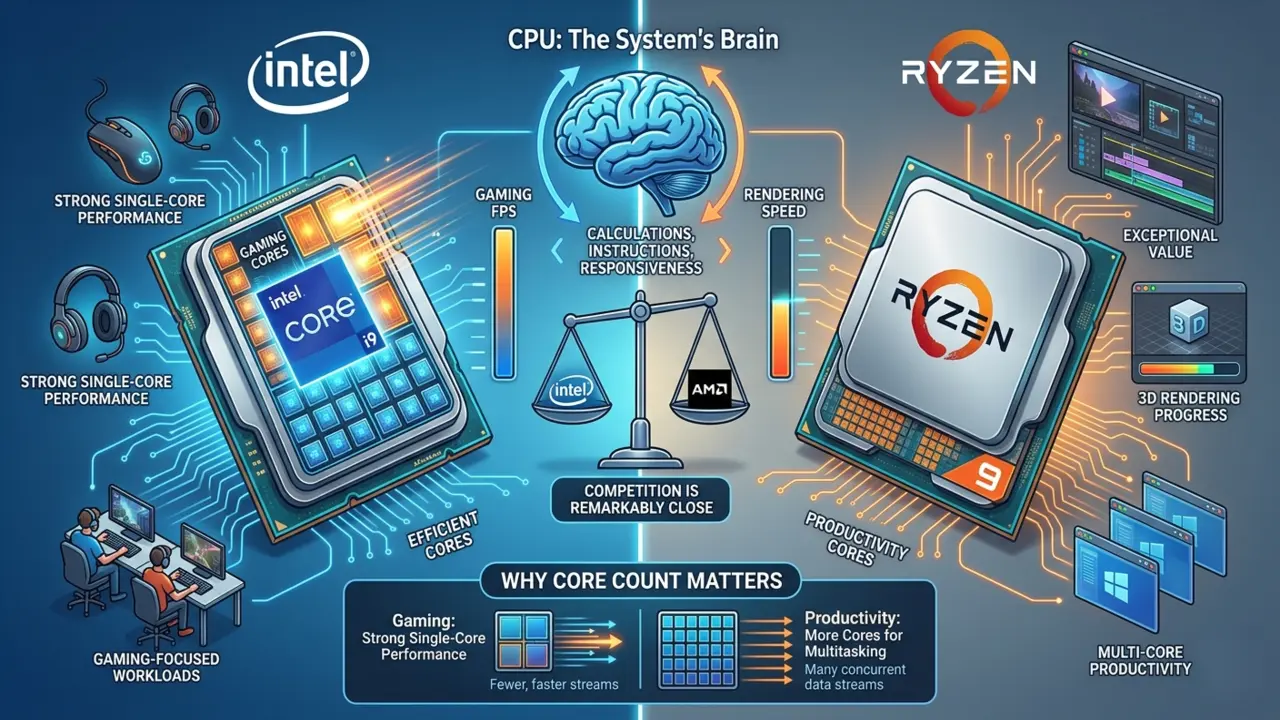
The CPU handles calculations, instructions, and general system responsiveness.
Intel vs. AMD: Both manufacturers produce excellent processors. Intel traditionally excels in gaming-focused workloads with strong single-core performance, while AMD often offers exceptional value and impressive multi-core productivity performance.
Today’s competition between the two is remarkably close.
Every desktop PC buying guide should emphasize that processor selection depends on workload rather than brand loyalty.
Why Core Count Matters: More cores enable better multitasking and productivity. Applications such as video editing, rendering, and virtualization benefit greatly from additional cores. Gaming, however, often relies more heavily on strong single-core performance. As a result, the “best” CPU depends entirely on your workload.
Motherboard (The Backbone)
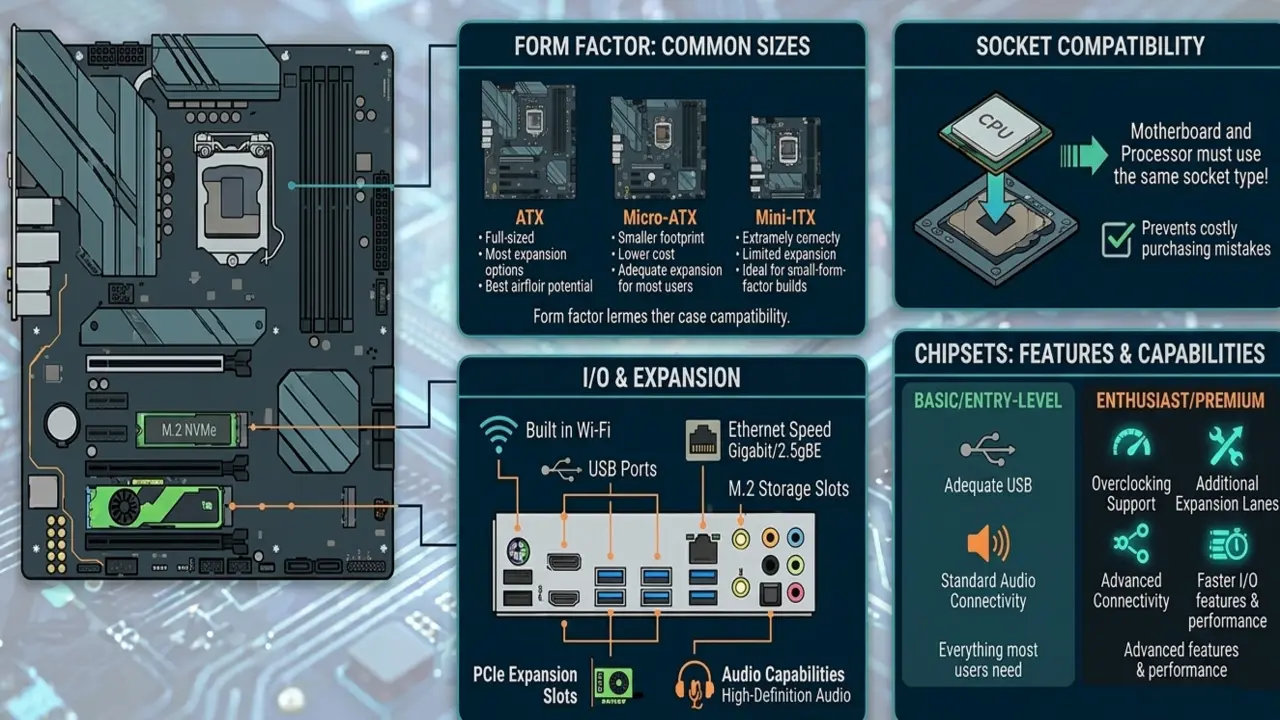
The motherboard connects every component together. While it rarely receives the same attention as CPUs or GPUs, it influences expandability, connectivity, and future upgrade potential.
Form Factor: Motherboards come in several common sizes.
ATX
- Full-sized
- Most expansion options
- Best airflow potential
Micro-ATX
- Smaller footprint
- Lower cost
- Adequate expansion for most users
Mini-ITX
- Extremely compact
- Limited expansion
- Ideal for small-form-factor builds
The form factor determines which case sizes are compatible.
Socket Compatibility: Every CPU requires a specific socket. A motherboard and processor must use the same socket type to function together. This simple compatibility check prevents many costly purchasing mistakes.
I/O and Expansion: Motherboards differ significantly in connectivity options. Important considerations include –
- Built-in Wi-Fi
- Number of USB ports
- Ethernet speed
- M.2 storage slots
- PCIe expansion slots
- Audio capabilities
Chipsets: Chipsets govern motherboard features and capabilities. Entry-level chipsets often provide everything most users need. Premium enthusiast chipsets typically add overclocking support, additional expansion lanes, and advanced connectivity. Buying the most expensive motherboard is rarely necessary.
GPU (The Visual Powerhouse)
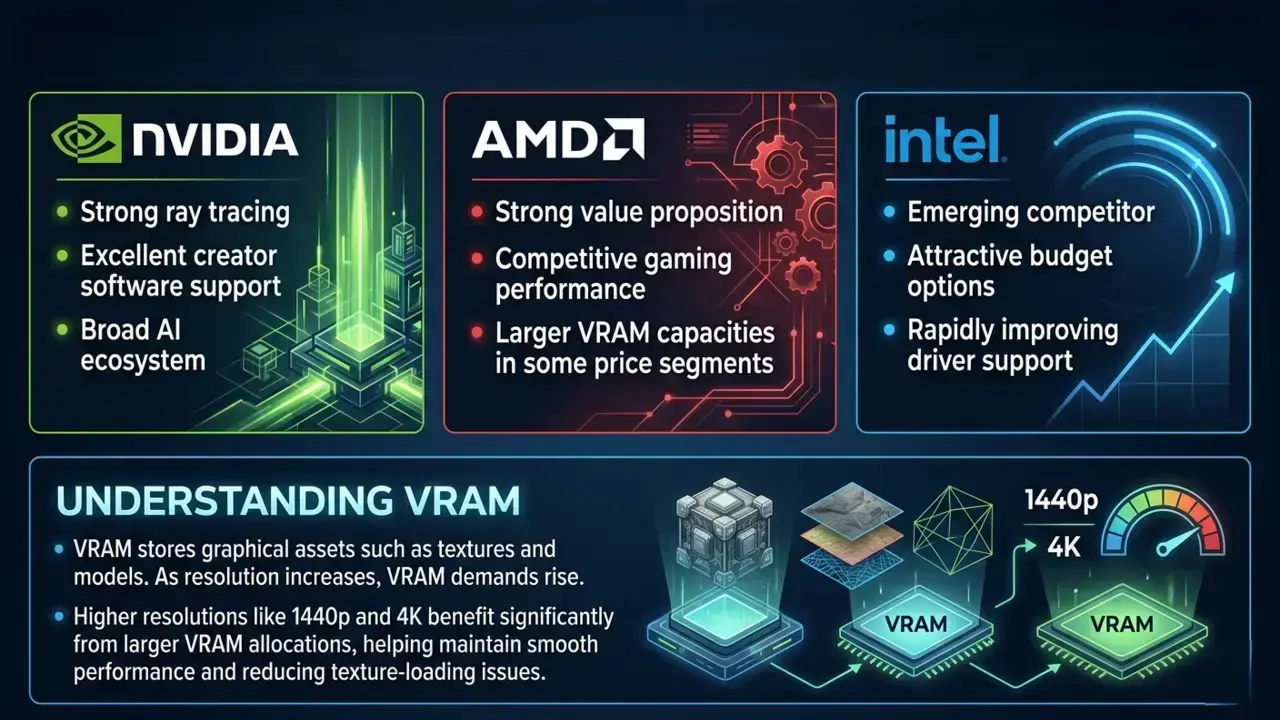
The graphics card determines gaming performance and accelerates many professional workloads.
NVIDIA vs. AMD vs. Intel
- Strong ray tracing
- Excellent creator software support
- Broad AI ecosystem
AMD:
- Strong value proposition
- Competitive gaming performance
- Larger VRAM capacities in some price segments
Intel:
- Emerging competitor
- Attractive budget options
- Rapidly improving driver support
Understanding VRAM
VRAM stores graphical assets such as textures and models. As resolution increases, VRAM demands rise. Higher resolutions like 1440p and 4K benefit significantly from larger VRAM allocations, helping maintain smooth performance and reducing texture-loading issues.
In any modern desktop PC buying guide, the graphics card is typically the single most important component for gaming performance.
RAM (The Short-Term Memory)
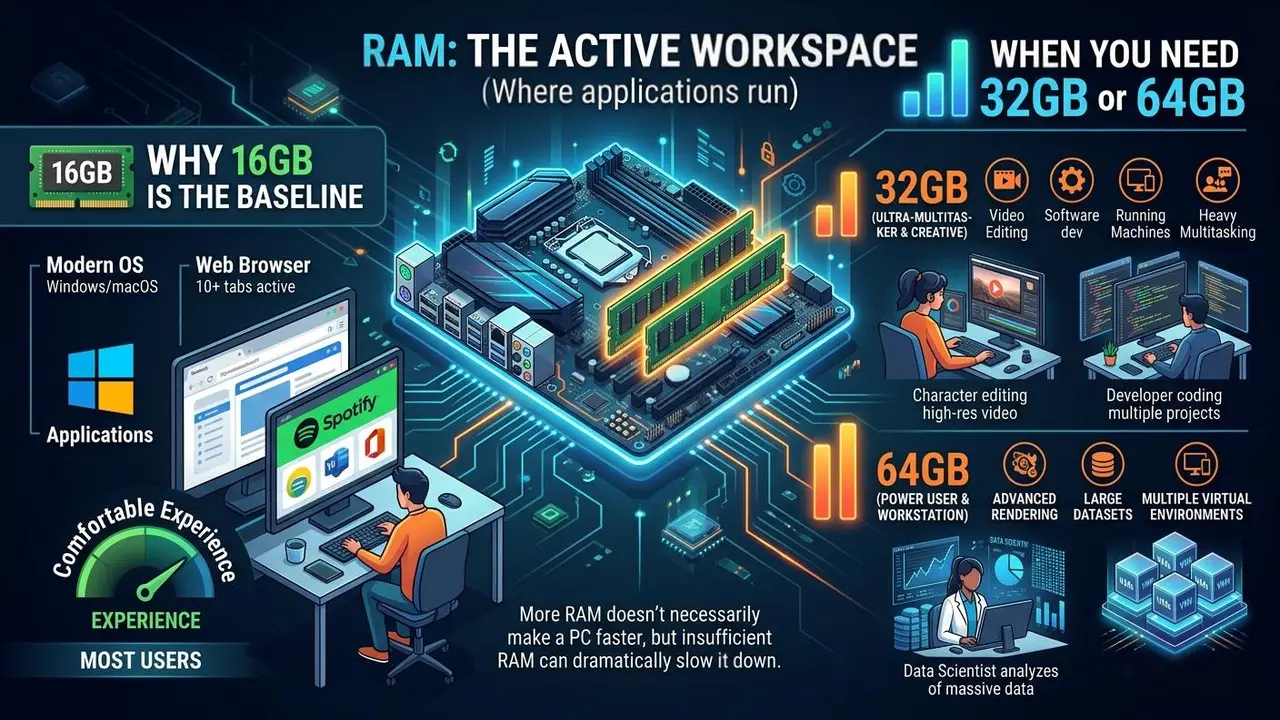
RAM serves as the workspace where active applications operate.
Why 16GB Is the Baseline
For most users, 16GB provides a comfortable experience. Modern operating systems, browsers, and applications consume more memory than ever before.
When You Need 32GB or 64GB
Consider 32GB if you:
- Edit video
- Run virtual machines
- Develop software
- Multitask heavily
Consider 64GB if you:
- Work with large datasets
- Perform advanced rendering
- Operate multiple virtual environments
More RAM doesn’t necessarily make a PC faster, but insufficient RAM can dramatically slow it down.
Storage (The Filing Cabinet)
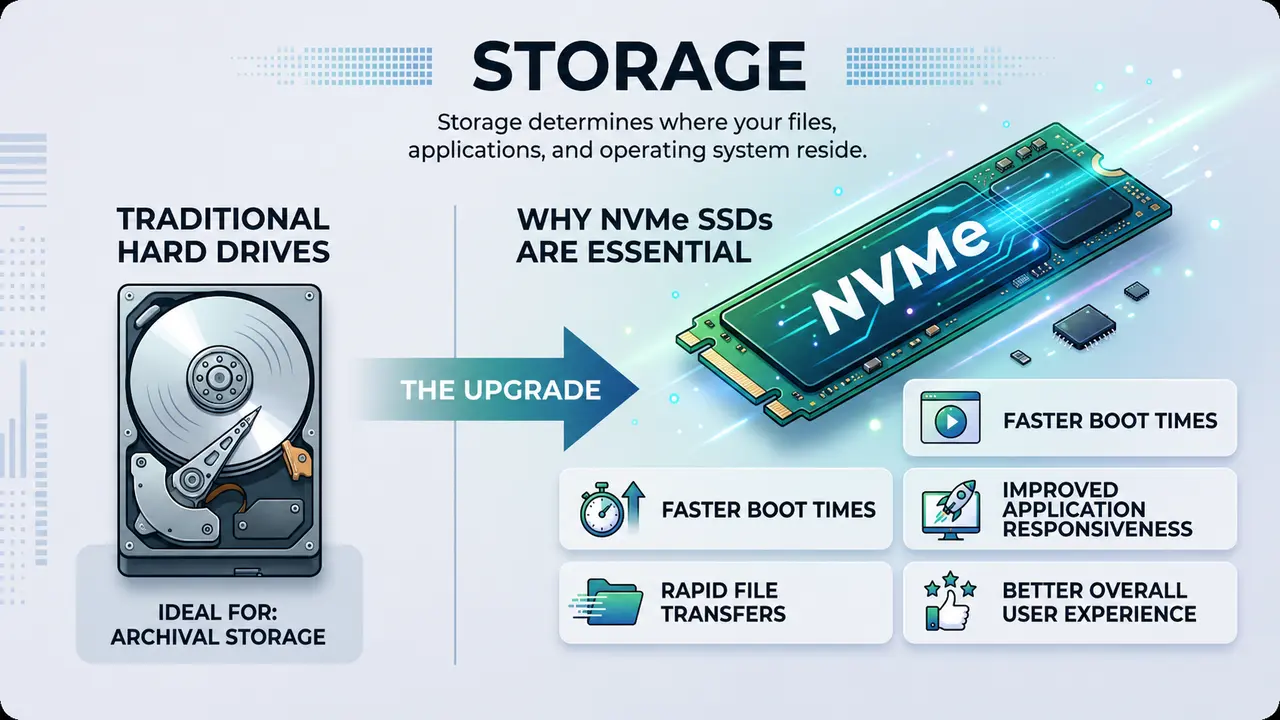
Storage determines where your files, applications, and operating system reside.
Why NVMe SSDs Are Essential
Traditional hard drives remain useful for archival storage, but they should no longer serve as primary drives.
NVMe SSDs offer:
- Faster boot times
- Rapid file transfers
- Improved application responsiveness
- Better overall user experience
The difference is immediately noticeable.
PSU (The Heart)
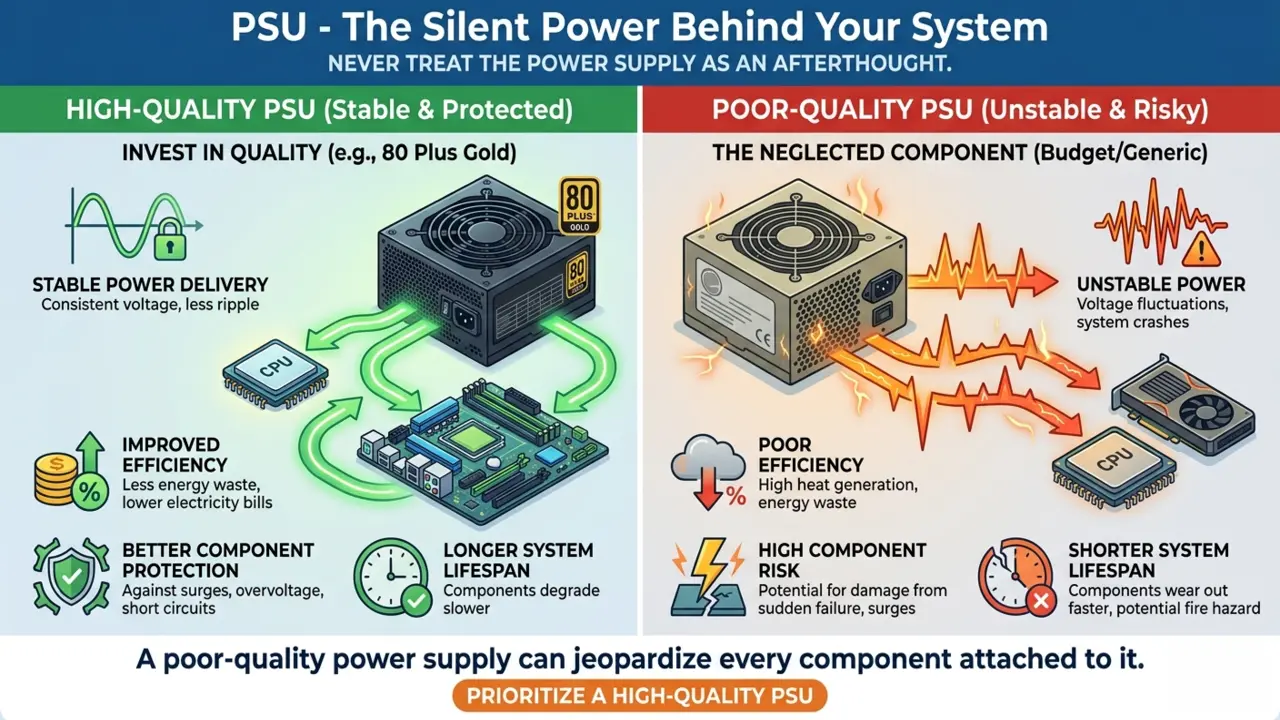
The Power Supply Unit quietly powers every component in your system. Unfortunately, it is also one of the most neglected components during budget planning.
A high-quality PSU provides:
- Stable power delivery
- Improved efficiency
- Better component protection
- Longer system lifespan
A poor-quality power supply can jeopardize every other component attached to it. Never treat the PSU as an afterthought.
The Hidden Costs & Essential Peripherals
Many buyers focus exclusively on the PC itself and forget the supporting ecosystem.
The Monitor
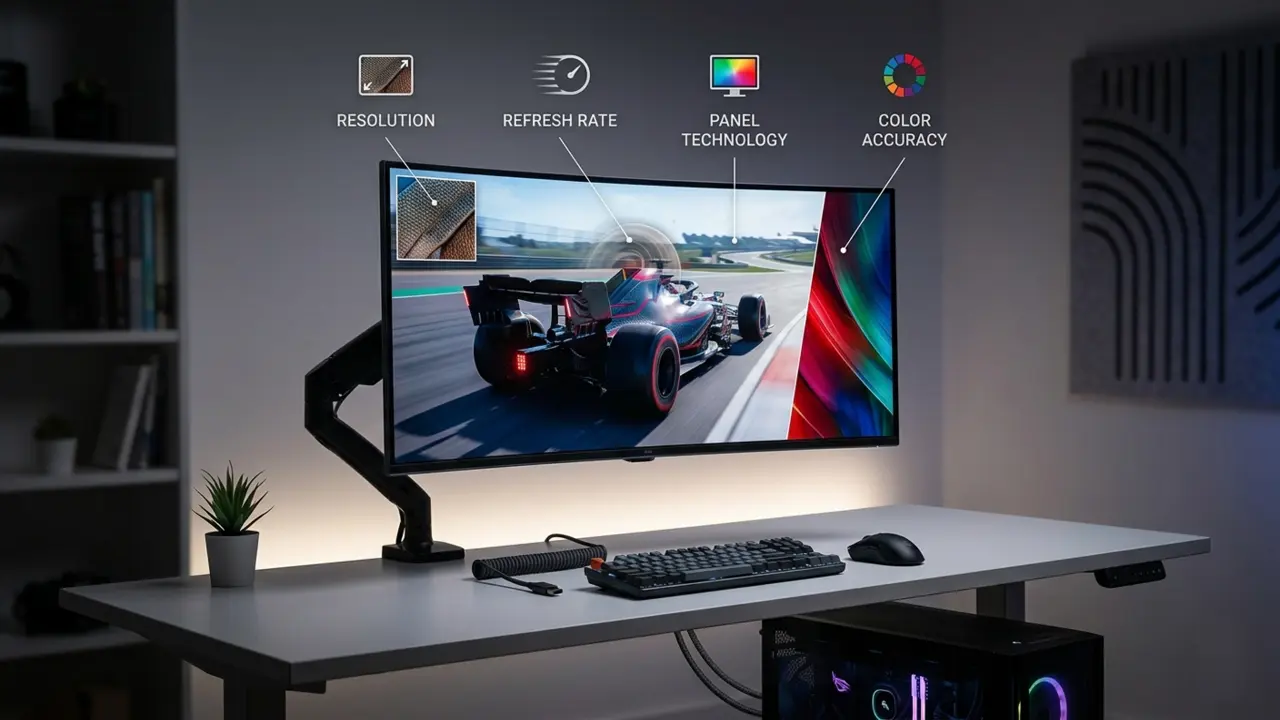
A powerful PC paired with a poor display creates an imbalanced experience.
Consider:
- Resolution
- Refresh rate
- Panel technology
- Color accuracy
There’s little reason to purchase a premium graphics card if the monitor cannot showcase its capabilities.
The Input Devices
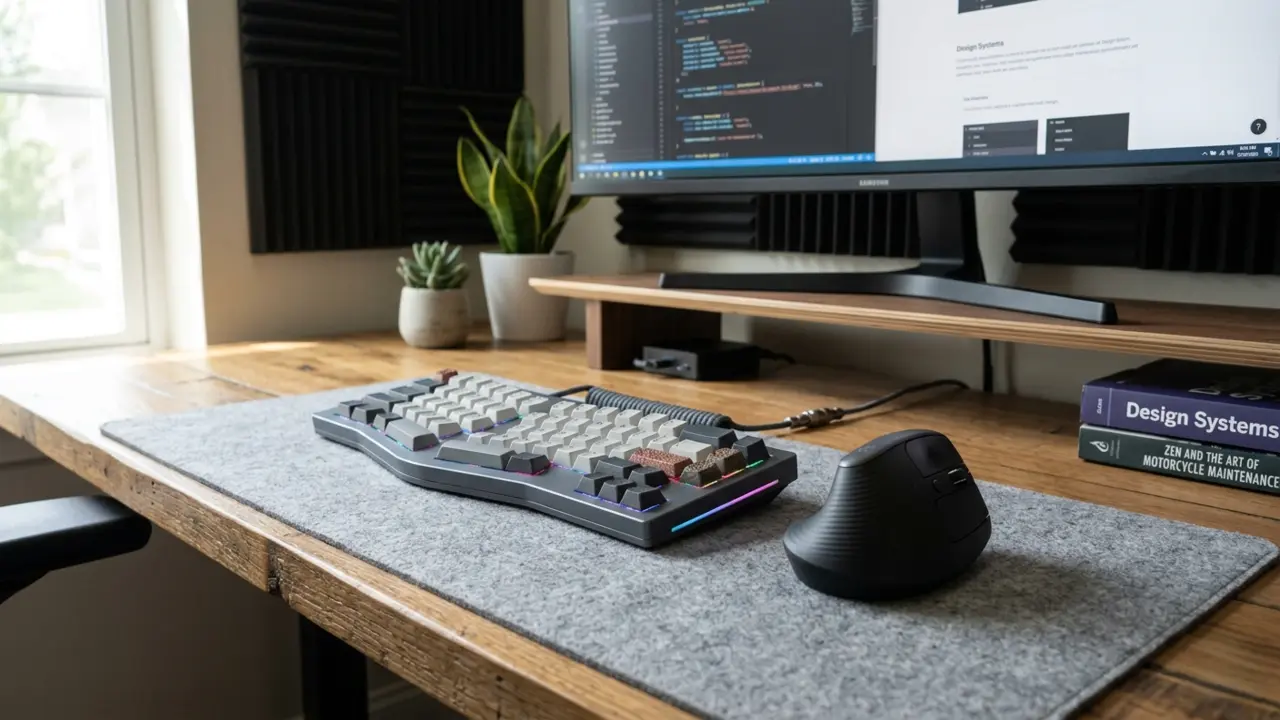
Keyboards and mice directly influence daily comfort. Mechanical keyboards provide tactile feedback and durability, while ergonomic designs prioritize long-term comfort. Choose devices that support your workflow rather than simply matching aesthetic trends.
The Ecosystem
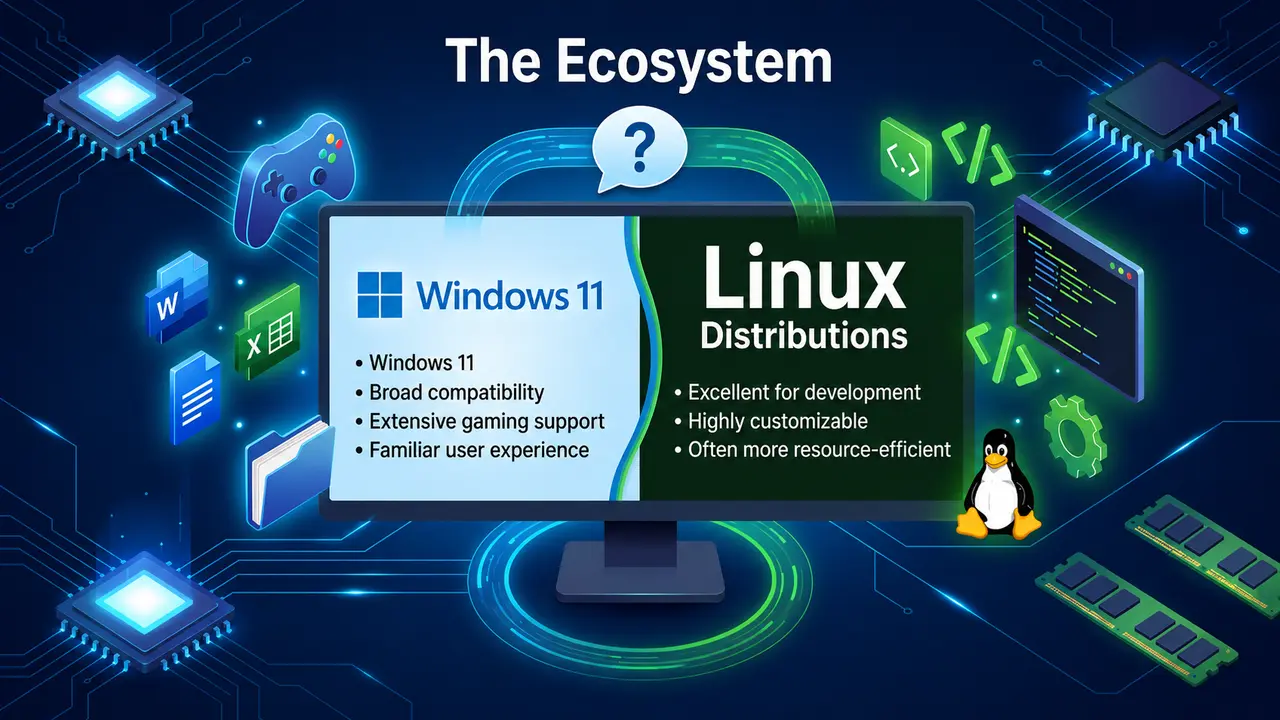
Software matters just as much as hardware.
Windows 11
- Broad compatibility
- Extensive gaming support
- Familiar user experience
Linux Distributions
- Excellent for development
- Highly customizable
- Often more resource-efficient
Factor operating system preferences into your purchasing decisions from the beginning.
Budget Allocation Strategy
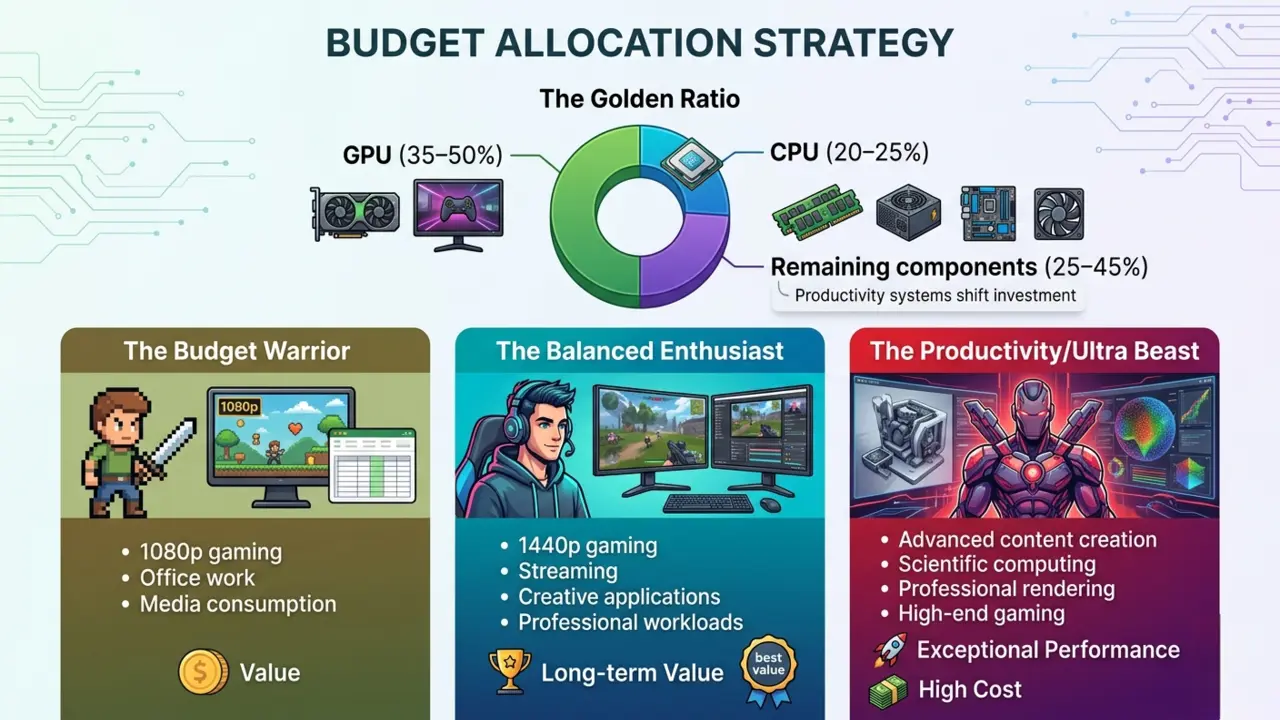
A smart budget often outperforms a larger poorly allocated one. Throughout this desktop pc buying guide, we emphasize that spending your money where it matters most—like the GPU and CPU—yields the best overall performance.
The Golden Ratio
For gaming-focused systems, the graphics card typically deserves the largest portion of the budget.
A rough guideline:
- GPU: 35–50%
- CPU: 20–25%
- Remaining components: 25–45%
Productivity systems may shift more investment toward the processor and memory.
The Budget Warrior
Ideal for:
- 1080p gaming
- Office work
- Media consumption
Focus on value rather than maximum performance.
The Balanced Enthusiast
The sweet spot for most users. These systems comfortably handle:
- 1440p gaming
- Streaming
- Creative applications
- Professional workloads
This tier often delivers the best long-term value.
The Productivity/Ultra Beast
Designed for users who demand uncompromising performance.
Ideal for:
- Advanced content creation
- Scientific computing
- Professional rendering
- High-end gaming
Performance is exceptional, but costs rise sharply.
Where And When To Buy
A well-rounded desktop PC buying guide doesn’t stop at hardware selection—it also explains how timing your purchase can maximize value. Timing and retailer selection can significantly impact value.
Market Timing
Computer hardware follows predictable release cycles. Purchasing a component weeks before its replacement launches can result in immediate depreciation. Research upcoming releases whenever possible.
Authorized Retailers
Stick to reputable sellers. Authorized retailers provide:
- Genuine products
- Manufacturer warranties
- Reliable return policies
- Better customer support
The lowest price isn’t always the best deal.
Refurbished vs. New
Refurbished hardware can offer remarkable value when purchased from trusted sources. Refurbished products are generally safest when buying:
- Monitors
- Business laptops
- CPUs
Exercise greater caution with heavily used storage drives and power supplies.
Troubleshooting & Future-Proofing
The best desktop PC buying guide helps you think beyond today’s purchase by planning for future upgrades and long-term reliability. A well-planned PC should remain useful for years.
Upgrade Paths
Before purchasing, examine future upgrade options. Motherboards supporting future CPU generations can significantly extend system longevity. A little foresight today can postpone a complete rebuild tomorrow.
Cooling
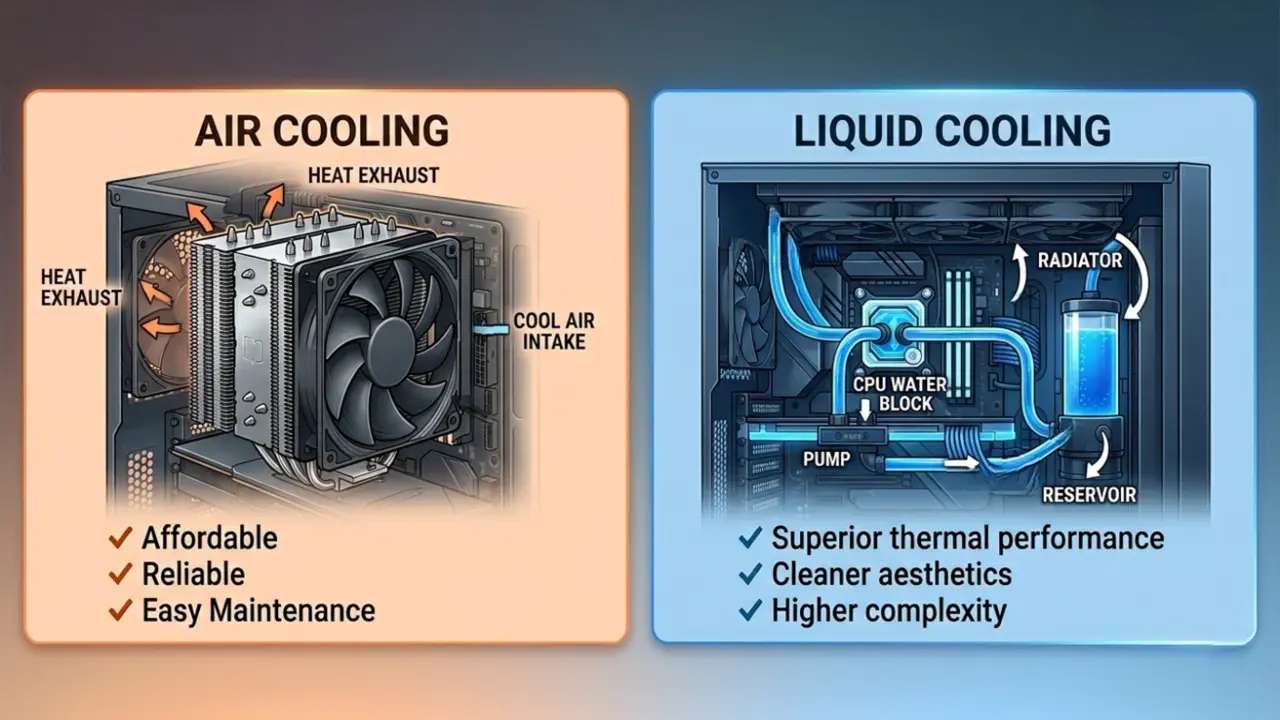
Heat is the silent enemy of performance.
Air Cooling
- Affordable
- Reliable
- Easy maintenance
Liquid Cooling
- Superior thermal performance
- Cleaner aesthetics
- Higher complexity
Both solutions can be excellent when implemented properly.
Basic Maintenance
Routine maintenance dramatically improves system lifespan. Simple habits include:
- Cleaning dust filters
- Checking fan operation
- Monitoring temperatures
- Maintaining unobstructed airflow
A few minutes of maintenance every few months can prevent major problems later.
Conclusion
The perfect PC isn’t the one with the most expensive processor, the largest graphics card or the longest specification sheet. It’s the machine that delivers balanced performance for the tasks you perform every day. We hope this desktop pc buying guide has equipped you with the confidence to choose or build a machine that delivers balanced performance for the tasks you perform every day.
A thoughtfully configured mid-range system often provides a better experience than an overpriced collection of premium components that never operate near their full potential.
Start by understanding your workload. Build around your actual needs. Invest in reliable core components. Prioritize quality power delivery, fast storage and a sensible upgrade path.
If budget constraints exist, start small. Components like storage and memory are relatively easy to upgrade later. Focus your initial investment on parts that are more difficult to replace, such as the motherboard, power supply, and processor platform.
The smartest PC purchase isn’t about chasing maximum performance—it’s about building a machine that works brilliantly for you. Use this desktop PC buying guide as a reference whenever you compare systems, choose components, or plan your next upgrade.